EcommerceIQ — Market Insights Ai-ssistance

Content Engine

Research-backed articles, from a topic to a published post — in your language, with citations you can check

A step-by-step guide

01

Before You Start

What the engine does, the stages a project moves through, and what it costs

Ai-ssistance EcommerceIQ — Market Insights
How it works

One topic in, a published article out

Content Engine researches a topic on the open web, turns what it finds into content themes, writes full articles from those themes, and pushes the approved result to your WordPress site. You stay in control at every handover — nothing is generated, approved, or published without you asking for it.

You give it
A topic and
some context
It produces
Research reportContent themesDraft articles
You ship
ReviewedApprovedPublished
1 · Research The engine asks you clarifying questions, agrees a plan with you, then searches the web and writes an insights report. This is the slow, expensive step — and the one everything else is built on.
2 · Themes The report becomes a set of scored content themes. You pick the ones worth writing, and drop the rest.
3 · Content Each chosen theme becomes a full article with inline citations, which you edit, approve, then publish or schedule.
Ai-ssistance EcommerceIQ — Market Insights
Credits

What costs credits, and when

Only three things in Content Engine cost credits, and each is charged after the thing it produces has been saved — never up front. If a research run fails or produces no report, you are not charged for it.

Research run — 10 Charged once, when a run finishes and has written a research report. A run that fails, is cancelled, or comes back with nothing is marked Failed and costs nothing.
Theme set — 1 Charged once per generation, when the set of themes is saved. The charge is for the set, not per theme — asking for ten and getting seven still costs 1.
Content piece — 1 Charged once, when a generated article is saved. A generation that saves nothing costs nothing.
Everything else is free Clarifying questions, the research plan, suggested topics, per-theme research, excerpts, publishing, syncing, unscheduling — and reading anything you have already made.
Closing the tab still bills Generation is billed when the article is saved, not when the browser finishes receiving it. Close the tab mid-generation and you are still charged — and the article is still waiting for you in your content list.

Ai-ssistance EcommerceIQ — Market Insights
Project stages

The eight stages a project moves through

Every project shows its current stage in the projects list, so you can pick up where you left off. The stages advance in order as you complete each step of the workflow.

1 · Research Setup The project exists and you are defining the topic, the context, and the research plan. Nothing has been researched yet.
2 · Research Complete The research run finished and wrote its insights report. This is the point the 10 credits were charged.
3 · Themes Generated The report has been turned into a set of scored content themes, waiting for you to choose between them.
4 · Themes Selected You have picked the themes worth writing and set their order.
5 · Augmentation Per-theme research is deepening the chosen themes before anything is written. This step is free.
6 · Content Ready Articles have been generated and are sitting in the pipeline for you to edit, review and approve. This is where a finished project rests.
7 · Publishing Reserved for content in the middle of being published. Nothing sets this stage automatically today.
8 · Completed Reserved for a project that has run its course. Nothing sets this stage automatically today.
Ai-ssistance EcommerceIQ — Market Insights
02

Connect WordPress

Set this up once, before you need it — publishing has nowhere to go without it

Ai-ssistance EcommerceIQ — Market Insights
Prerequisites

What your site needs first

Content Engine talks to WordPress through a JWT authentication plugin — not WordPress’s built-in application passwords. If neither plugin below is installed, the connection will fail no matter how correct your username and password are. Install one first.

1 · A JWT plugin Install Simple JWT Login (preferred) or the older JWT Authentication for WP REST API. The engine tries Simple JWT Login first and falls back to the legacy one.
2 · An HTTPS site The site URL must start with https://. Plain HTTP is refused, and so is a URL with credentials embedded in it.
3 · A WordPress user A username and password for an account allowed to create posts. The password is encrypted on our side and is never shown or sent back to you again.
4 · Categories with children Only a leaf sub-category can be assigned to a post — one nested under a parent, with no children of its own. A flat category list will be rejected at publish time.
Ai-ssistance EcommerceIQ — Market Insights
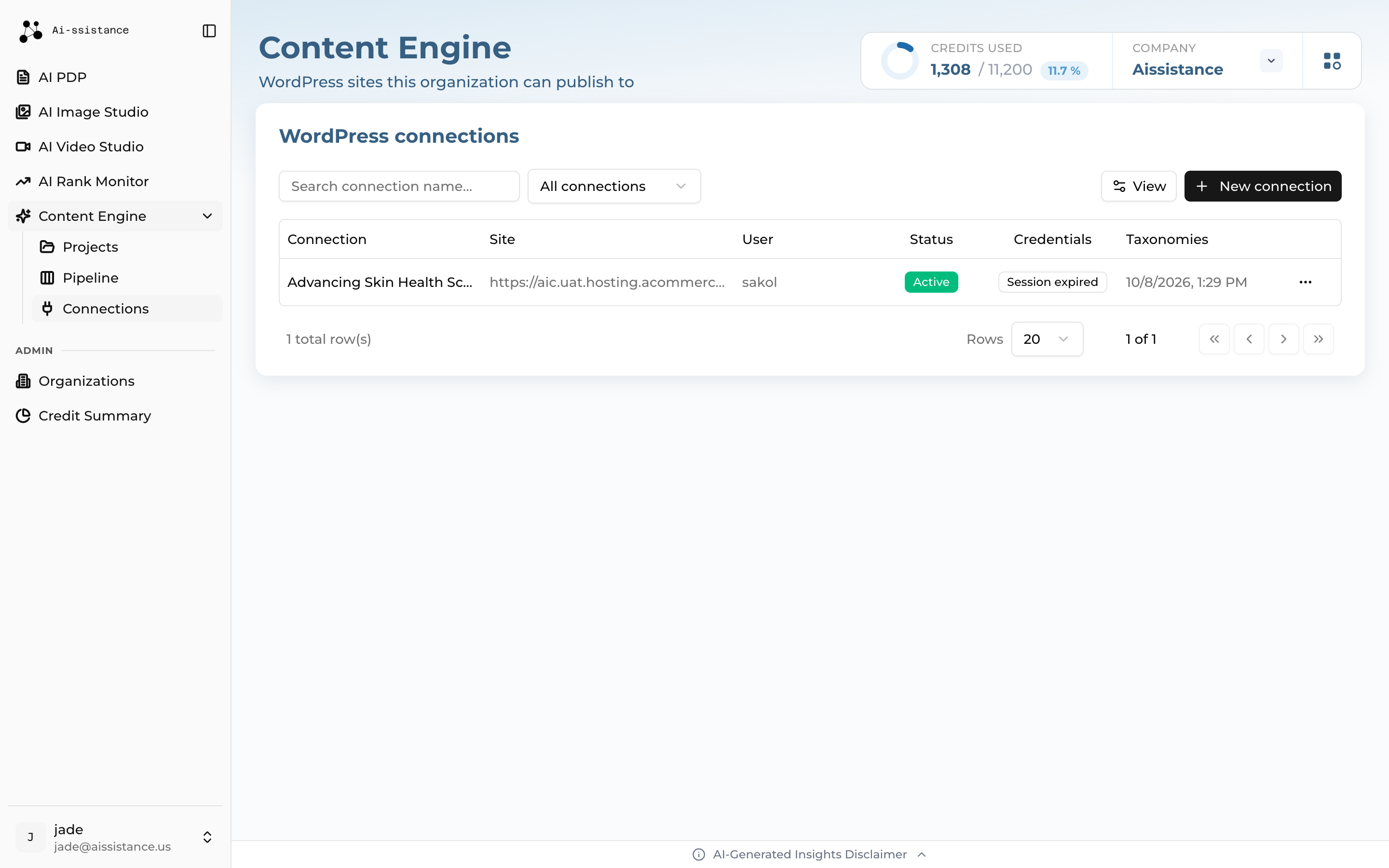
Content Engine Connections list with the New Connection button
Step 1

Open Connections

  • In the sidebar, open Content Engine and then Connections
  • The list shows every site your organisation has connected, and whether each is currently active
  • Click New Connection to add a site
  • One connection can serve many projects — you usually only do this once
Ai-ssistance EcommerceIQ — Market Insights
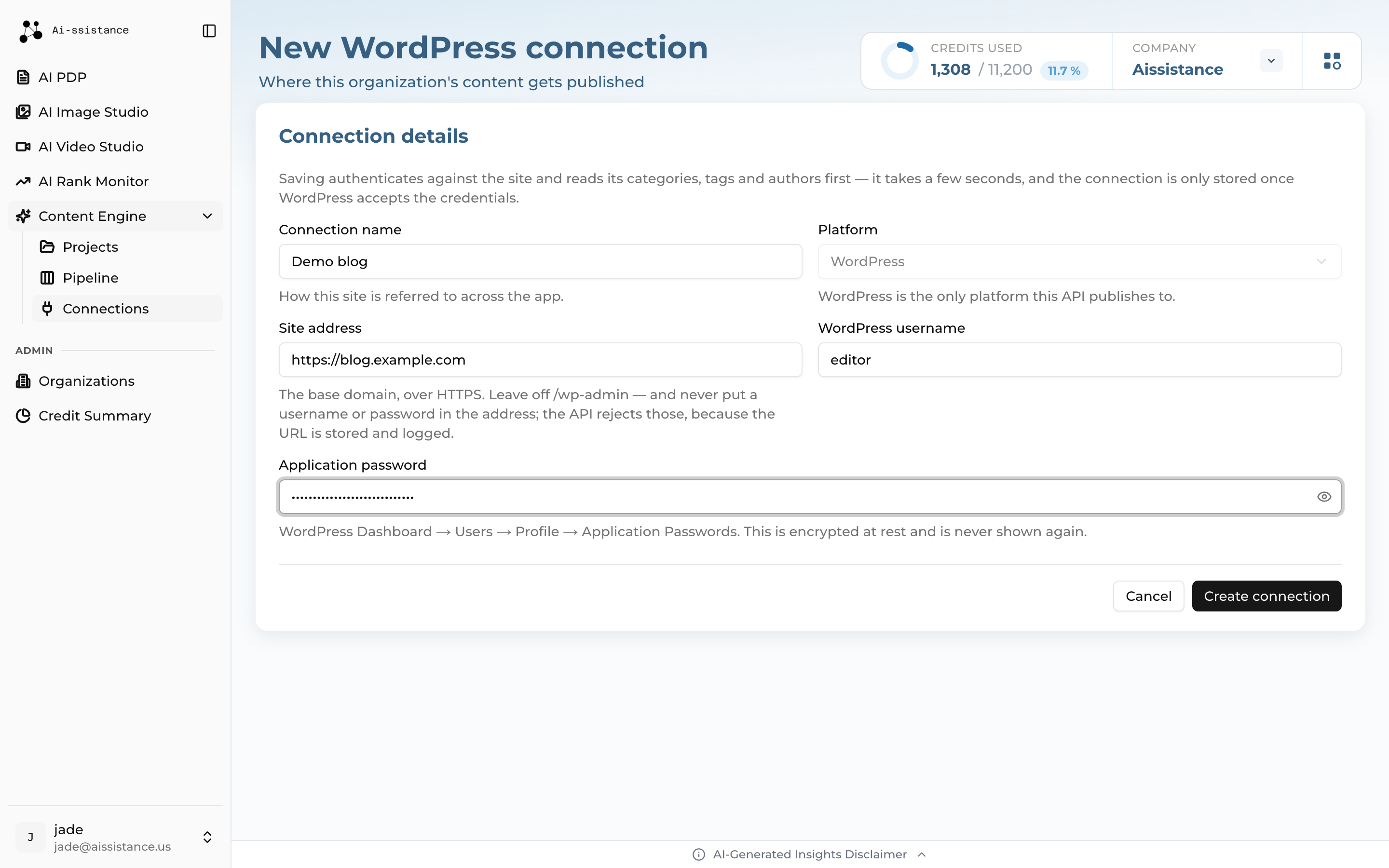
New Connection form with name, site URL, username and password fields
Step 2

Enter Your Site Details

  • Name — how you will recognise this site in a dropdown later. Up to 100 characters
  • Site URL — the site’s home address, https:// only. Use the exact domain WordPress itself redirects to, including or excluding www.
  • Username and Password — the WordPress account the JWT plugin will authenticate
  • Saving is not instant: the engine signs in and reads your categories and tags for all six languages before the connection is stored
Ai-ssistance EcommerceIQ — Market Insights
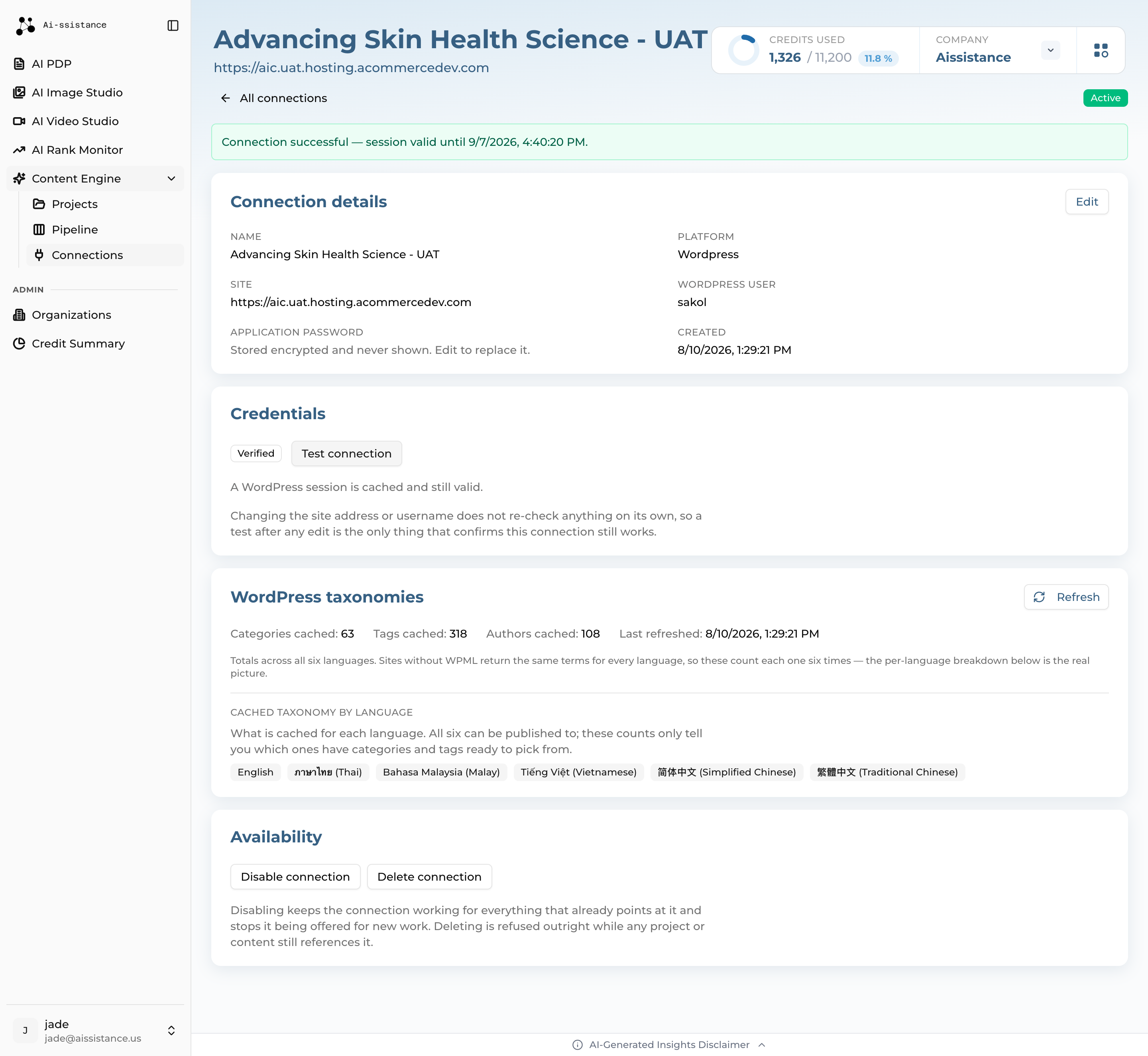
Saved connection with its status, credential state and WordPress taxonomy counts, where Test Connection reports the result
Step 3

Test and Troubleshoot

  • Test Connection re-checks the credentials and tells you exactly what went wrong if they fail
  • “WordPress redirected… to a different origin” means the URL is wrong — usually a missing or extra www. Change the connection to the address it redirected to
  • “Failed to connect” means the JWT plugin is missing, or the username and password are wrong
  • To retire a site, set it inactive rather than deleting it — deleting is refused while any project or article still references it
  • Changed the WordPress password? Edit the connection and enter the new one. Leave the field blank to keep the stored password
Ai-ssistance EcommerceIQ — Market Insights
03

Create Your Project

A project holds one topic, its research, its themes and everything written from them

Ai-ssistance EcommerceIQ — Market Insights
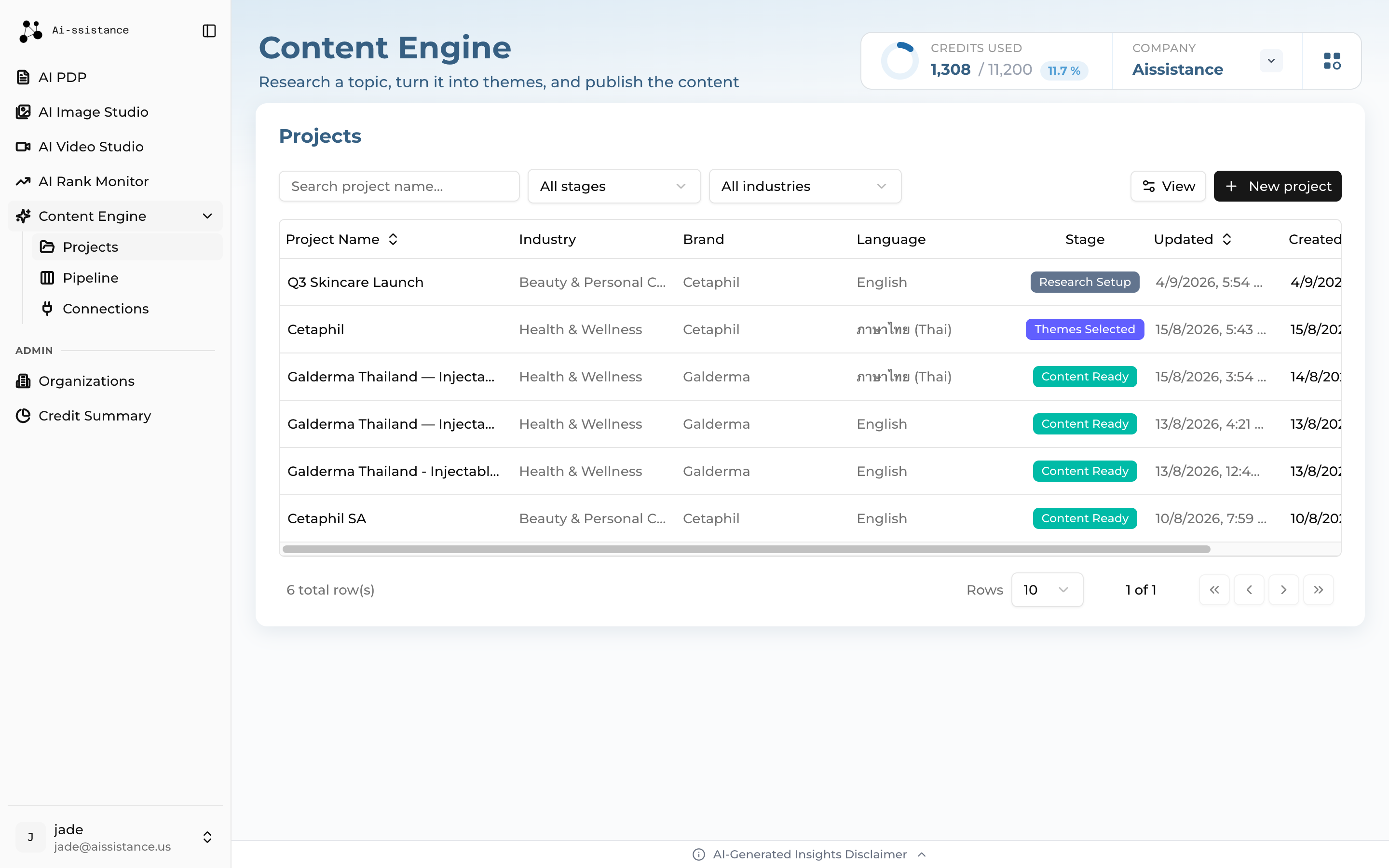
Content Engine Projects list showing each project's current stage, with the New Project button
Step 4

Open Content Engine Projects

  • In the sidebar, open Content Engine and then Projects
  • Each row shows the project’s current stage — the eight stages from the start of this guide — so you can see what each one is waiting for
  • You can filter the list by stage to find everything sitting at the same point
  • Click New Project to start a new one
Ai-ssistance EcommerceIQ — Market Insights
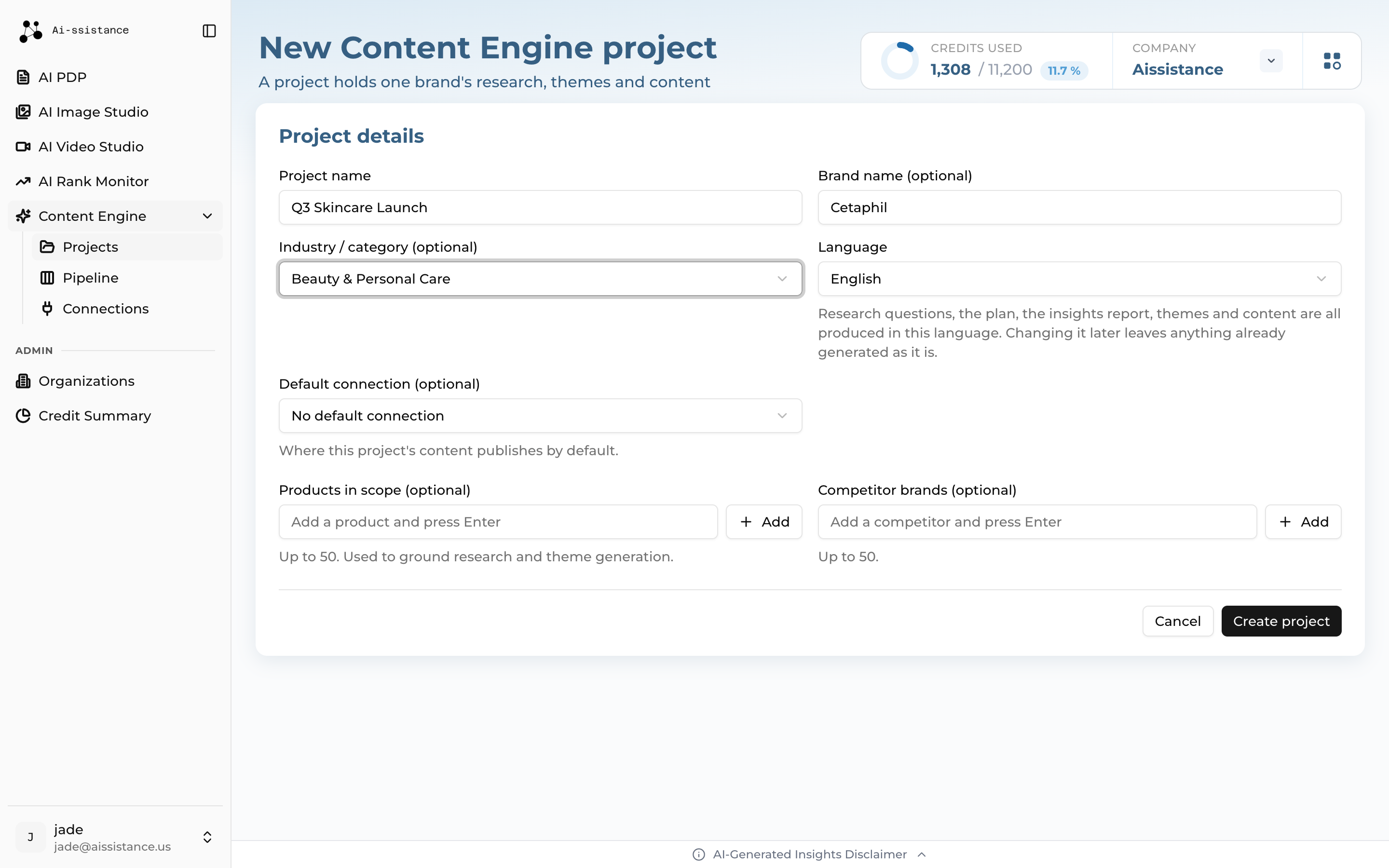
New Content Engine Project form showing name, industry, language and default connection fields
Step 5

Enter Project Details

  • Project Name — your brand or campaign name. This is only a label for you
  • Industry / Category — helps the engine aim its research at the right market
  • Language — the language this project works in, from the start of the research to the finished article. See the next slide
  • Default Connection (optional) — the WordPress site articles from this project will publish to
Ai-ssistance EcommerceIQ — Market Insights
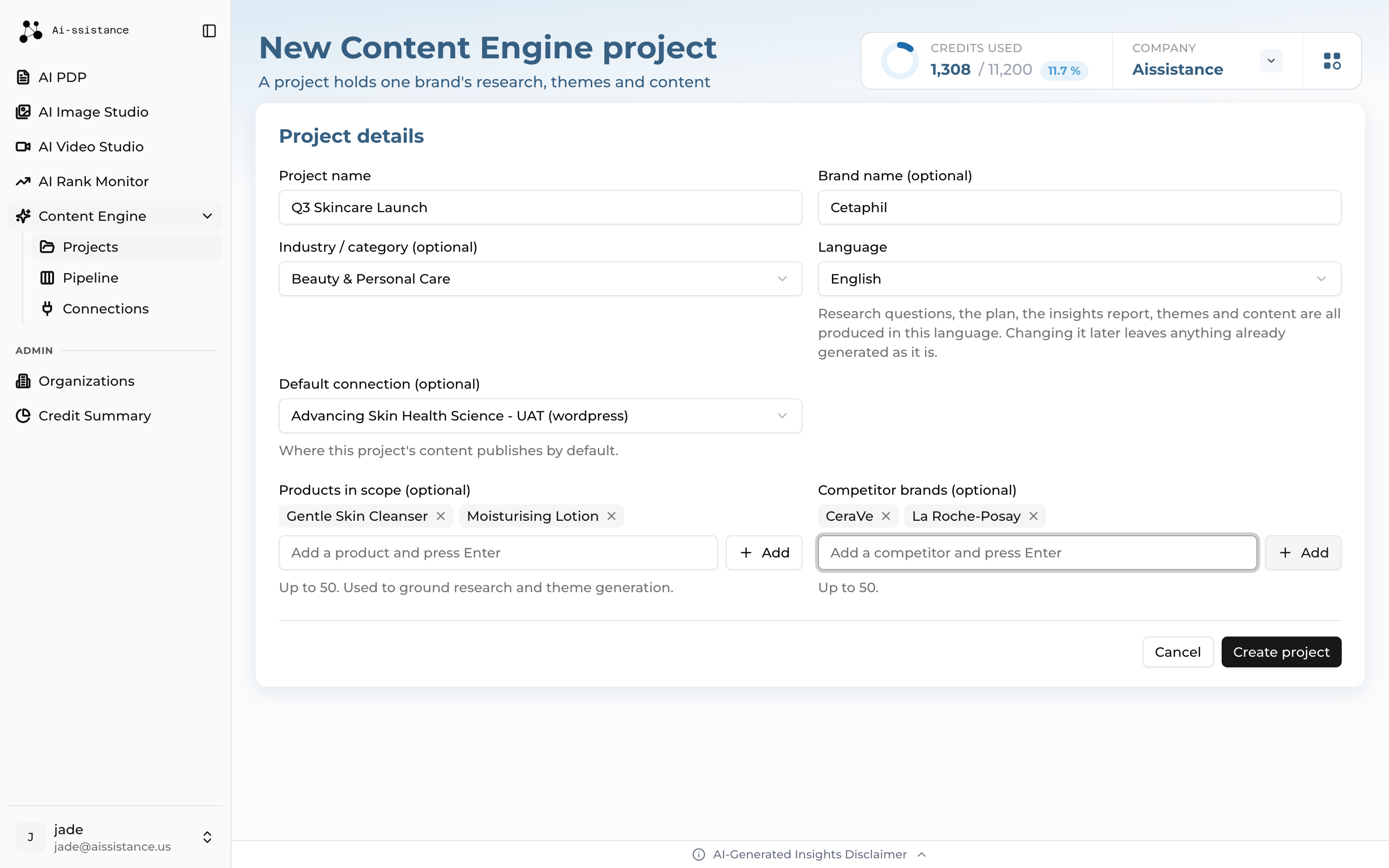
Completed project form with the Create Project button
Step 6

Create the Project

  • Check the details, then click Create Project
  • The project is created at the Research Setup stage and you land on the Research Plan
  • Creating a project is free. Nothing has been researched or charged yet
  • Everything here except the name can be changed later from the project’s settings
Ai-ssistance EcommerceIQ — Market Insights
Project language

The whole workflow runs in your language

A project’s language is set once and holds all the way through. The clarifying questions, the research plan, the insights report, the content themes and the finished article all come back in it — not in English with a translated article at the end.

Six languages English, ภาษาไทย (Thai), Bahasa Malaysia (Malay), Tiếng Việt (Vietnamese), 简体中文 (Simplified Chinese) and 繁體中文 (Traditional Chinese). English is the default.
Language is not market Choosing Thai also points the web search at Thailand. Local market, consumer and regulatory sources are searched in your language; global, clinical and industry sources are still searched in English, so you get both.
Changeable at any time Including after research has run. Anything already generated keeps the language it was written in — nothing is rewritten behind your back — so change it before you generate, not after.
It reaches the references too The References heading is written in the project’s language, so a Thai article ends with แหล่งอ้างอิง rather than an English heading.
Ai-ssistance EcommerceIQ — Market Insights
Claim rules · coming soon

Keeping regulated wording in bounds

This is not available yet. It is described here so regulated teams can plan for it. Until it ships, wording is governed by your own review in the editor and the approval step — the engine does not enforce claim rules today.

Prohibited terms A per-project list of wording that must never appear — internal codenames, unreleased names, price points, competitor attack lines. Set on the project and editable later; a project only ever sees its own organisation’s list.
Approved claims A claims bank held per product, so what may be asserted is retrievable at the moment of writing rather than left to whatever wording was easiest to find. Each claim keeps its verbatim source text, its tier, and the approved wording for a given market.
Flagged, not blocked A prohibited term will not discard your article. Where an approved alternative exists the substitution is made and recorded; where it does not, the passage is surfaced for a human to decide. You are never charged for an article and then denied it.
Ai-ssistance EcommerceIQ — Market Insights
04

Plan Your Research

Pick a topic, then answer the questions the engine asks back

Ai-ssistance EcommerceIQ — Market Insights
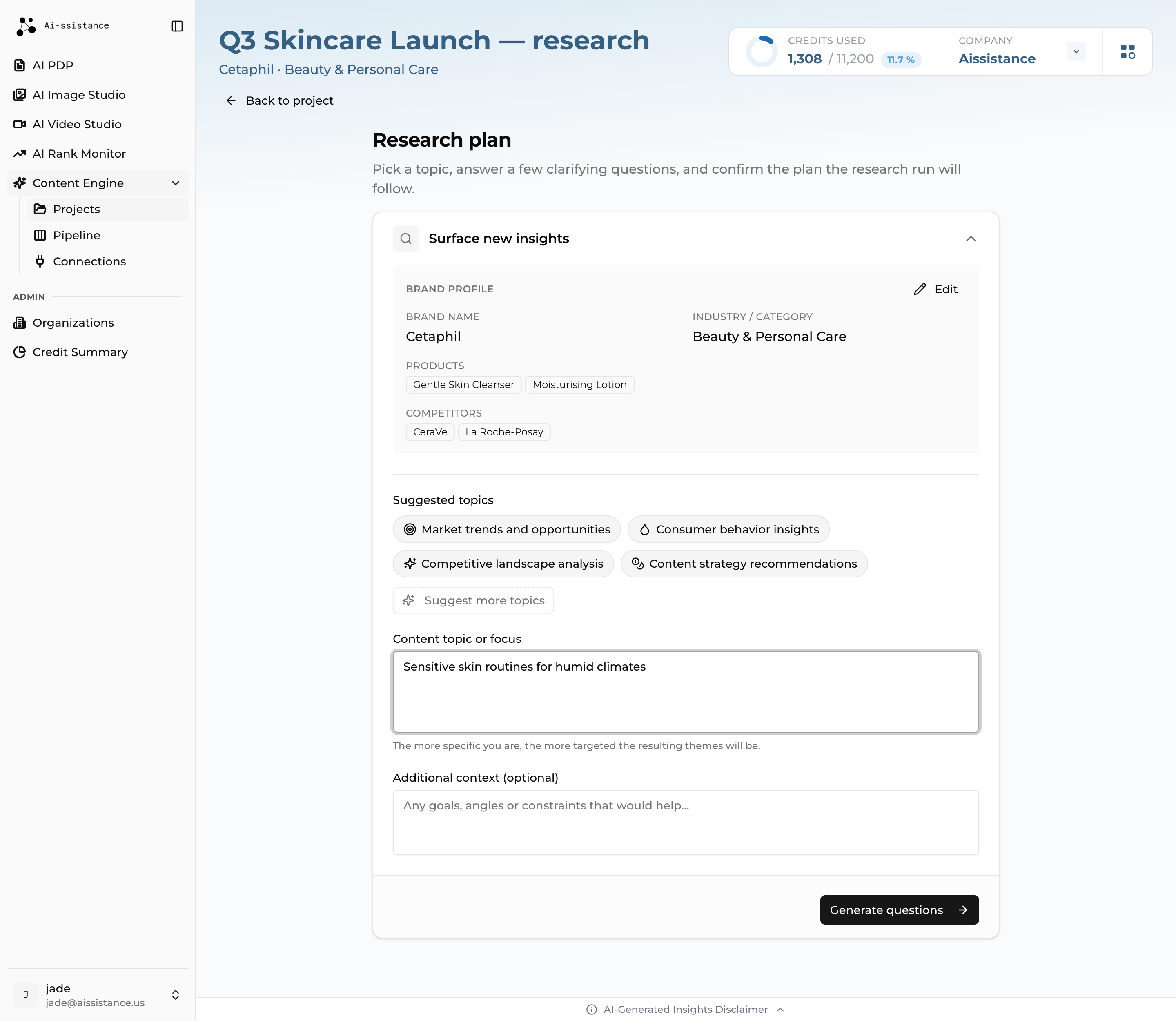
Research plan screen with the Surface new insights section, suggested topic chips and the content topic field
Step 7

Set Your Research Focus

  • Open Surface new insights and check the Brand profile block — brand, industry, products and competitors all steer the research
  • Click a suggested topic, or ask for more with Suggest more topics. Both are free
  • Content topic or focus — the more specific you are, the more targeted the themes will be
  • Additional context (optional) — goals, angles or constraints
  • Click Generate questions when you are ready
Ai-ssistance EcommerceIQ — Market Insights
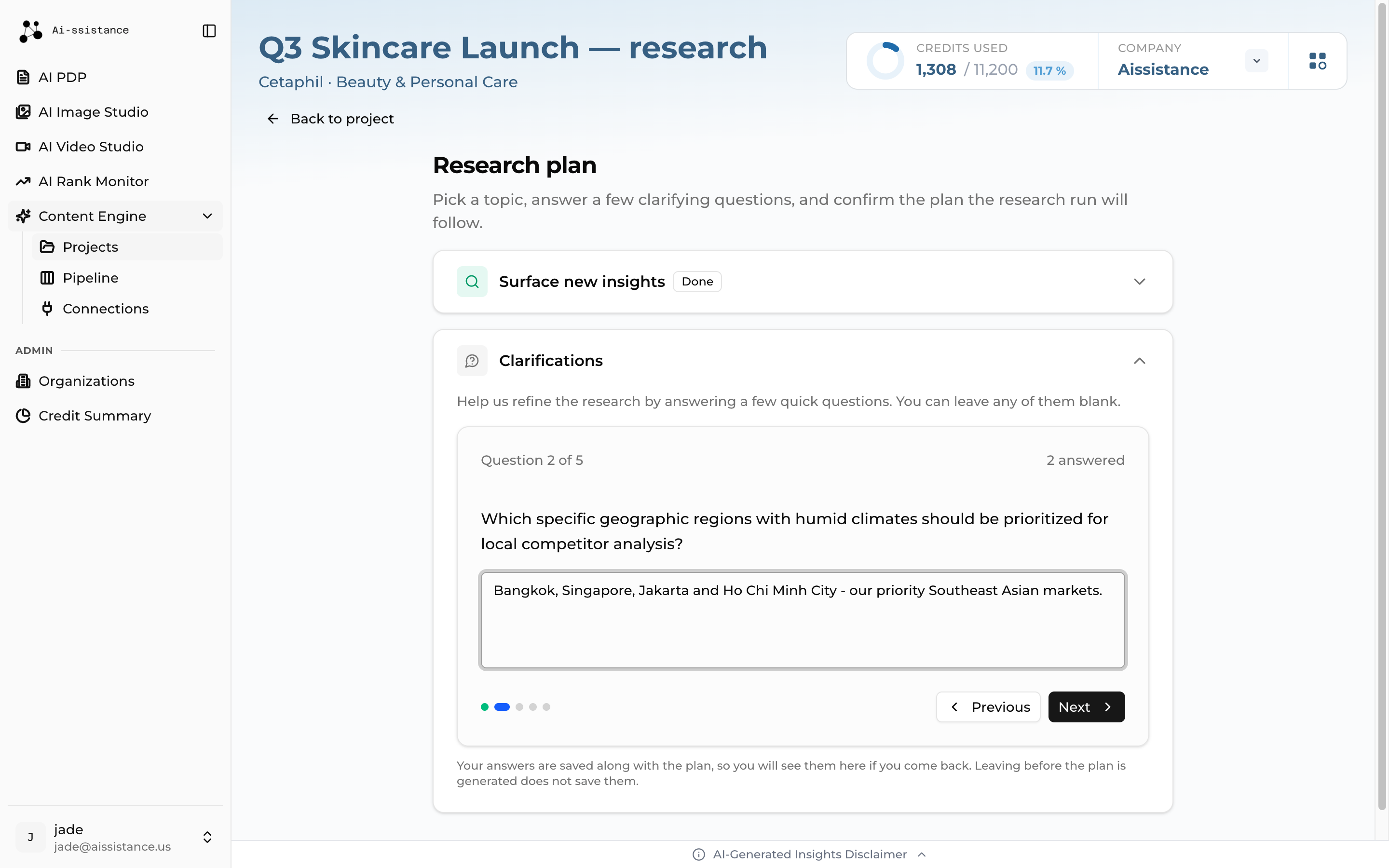
Clarifications section showing a numbered question, the answer field and the Previous and Next buttons
Step 8

Answer the Clarifications

  • The engine asks a short set of questions to narrow the research. They come back in your project’s language
  • Answer in the textarea — Enter continues, Shift+Enter starts a new line. Any question can be left blank
  • Move with Previous and Next; the last card shows Complete
  • Your answers are saved with the plan — but only once the plan is generated. Leave before that and they are lost
Free. The questions and the plan cost nothing. Nothing is charged until a research run delivers a report.
Ai-ssistance EcommerceIQ — Market Insights
05

Refine & Confirm

Your last free checkpoint before the run costs credits

Ai-ssistance EcommerceIQ — Market Insights
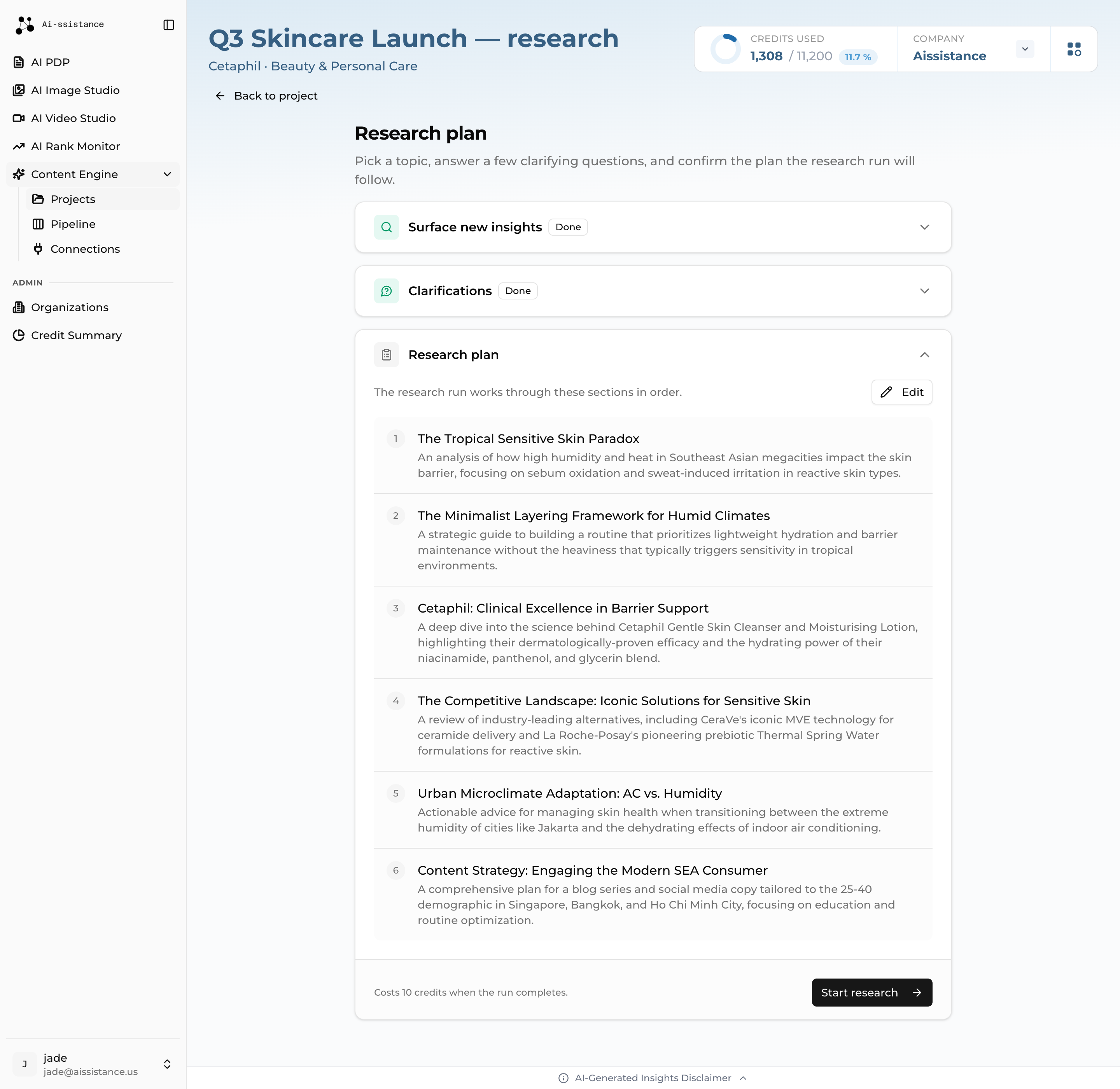
Research plan section listing numbered sections with the Edit control and the Start research button
Step 9

Review the Research Plan

  • The Research plan section lists the sections the run will work through, in order
  • Click Edit to reword, reorder, or Add section — up to 20, each needing a title and a description
  • This is the last point at which changes are free. Everything after it is built on this plan
  • Save changes, then click Start research
Ai-ssistance EcommerceIQ — Market Insights
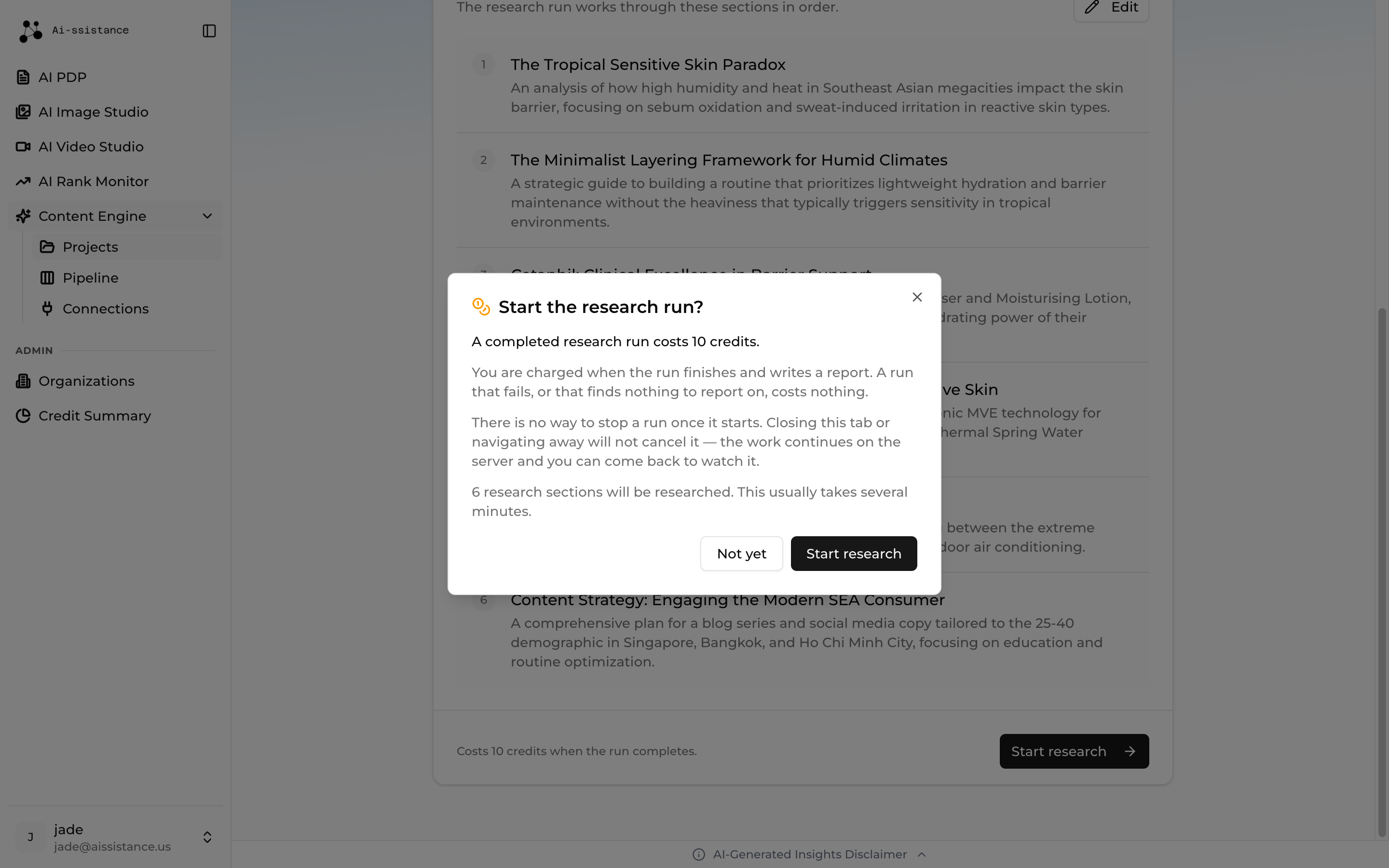
Start the research run confirmation dialog showing the credit cost and the warning that a run cannot be stopped
Step 10

Start the Research Run

  • A confirmation dialog states the cost and how many sections will be researched. It usually takes several minutes
  • A run cannot be stopped once it starts. Closing the tab or navigating away does not cancel it — the work continues on the server and you can come back to watch
  • Only one research run per organisation at a time. A second is refused until the first reaches an end
  • Click Start research to begin, or Not yet to go back
10 credits, charged when the run finishes and writes a report. A run that fails, or finds nothing to report on, costs nothing.
Ai-ssistance EcommerceIQ — Market Insights
06

Validate Research

See what came back, and read the report the themes are built from

Ai-ssistance EcommerceIQ — Market Insights
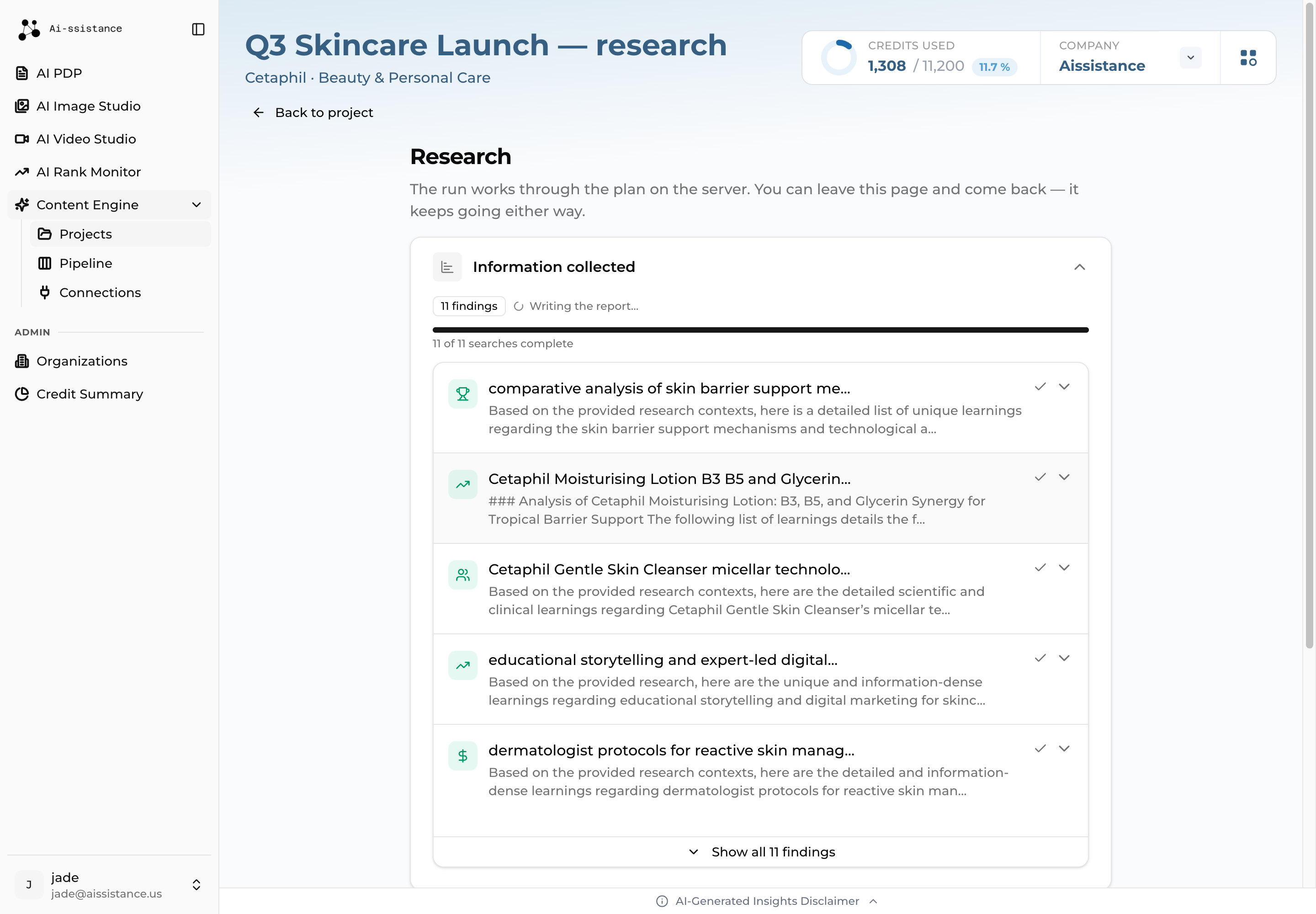
Information collected section showing findings with their sources and the searches-complete progress line
Step 11

Watch the Research

  • Information collected fills in as the run works, with a count of findings and how many searches are done
  • Each finding lists the Sources behind it. Use Show all findings to see the full set
  • Some searches coming back empty is normal — the badge tells you how many
  • You can leave this page. The run continues on the server and the page picks it back up
Ai-ssistance EcommerceIQ — Market Insights
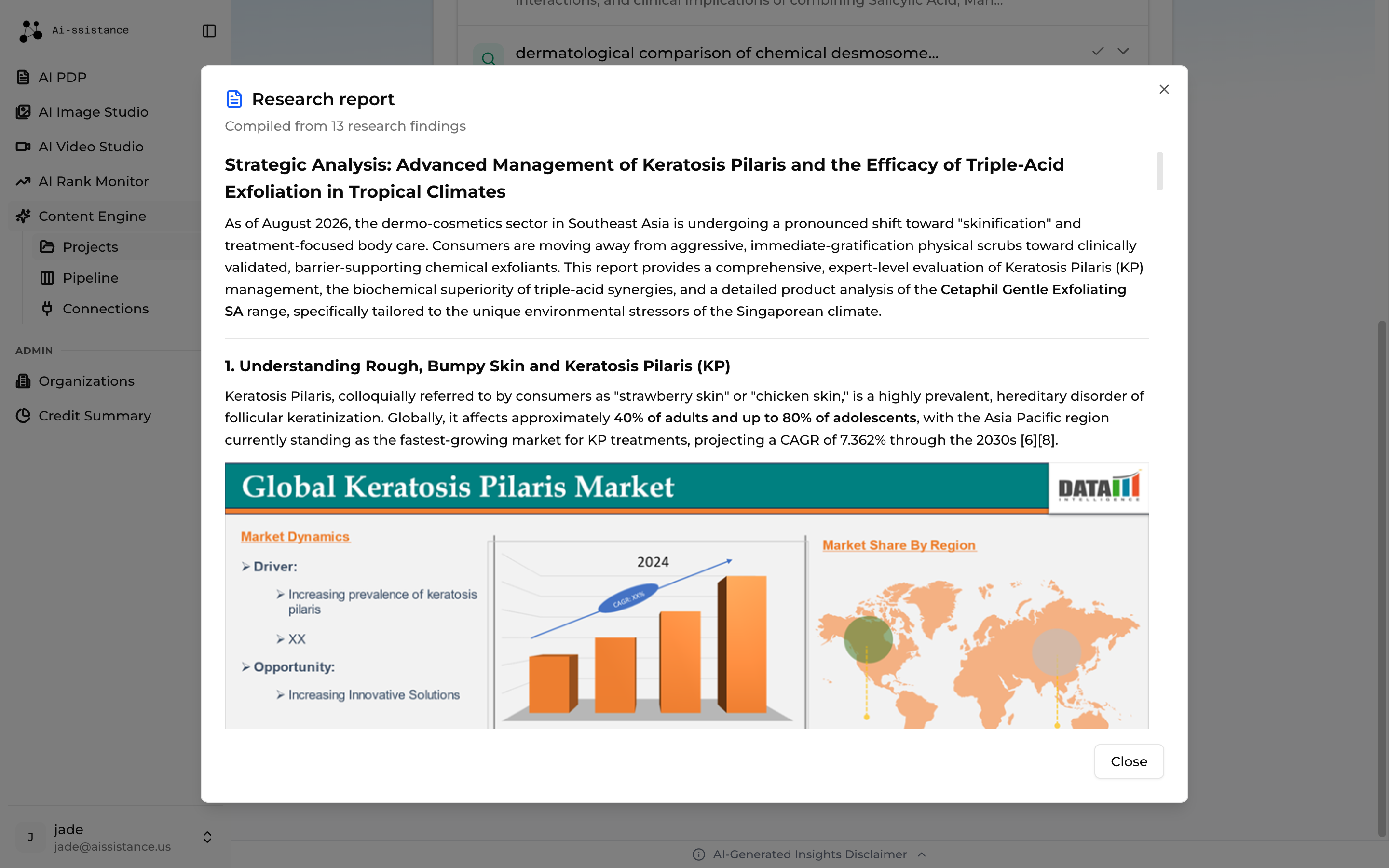
Research report ready panel with the Read the report dialog open
Step 12

Read the Report

  • Research report ready means the run delivered. This is the moment the 10 credits were charged
  • Click Read the report — this is what every theme and article is built from, so it is worth reading
  • If it is too thin, Run again starts a fresh run — and costs another 10 credits
  • Click Continue to themes when you are satisfied
No report, no charge. A run that finds nothing is marked Failed and costs nothing — you will not be billed for research you cannot use.
Ai-ssistance EcommerceIQ — Market Insights
07

Choose Content Themes

The report becomes a set of scored opportunities — you pick which are worth writing

Ai-ssistance EcommerceIQ — Market Insights
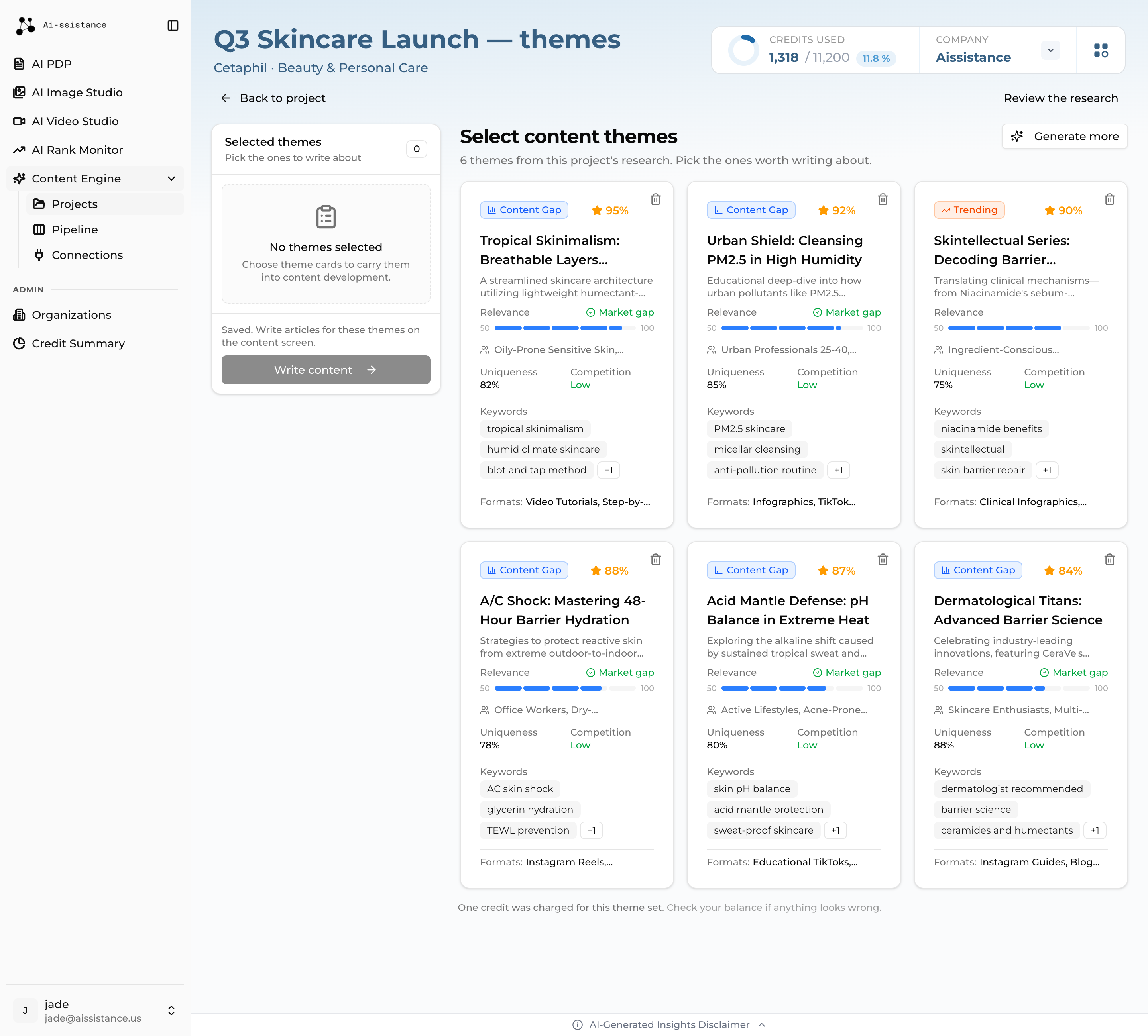
Select content themes grid with scored theme cards showing relevance, market gap and competition
Step 13

Browse Content Themes

  • Each card is tagged Content Gap, Trending or Evergreen, and scored on Relevance, Market gap, Uniqueness and Competition
  • Review the Keywords and Formats on each card before choosing
  • Click a card to select it. Deleting a theme deletes every article under it, and refunds nothing
  • Generate more adds a second set beside the first — it is not a redo, and it charges again
1 credit per theme set, charged once the set is saved — whether it produced five themes or fifty.
Ai-ssistance EcommerceIQ — Market Insights
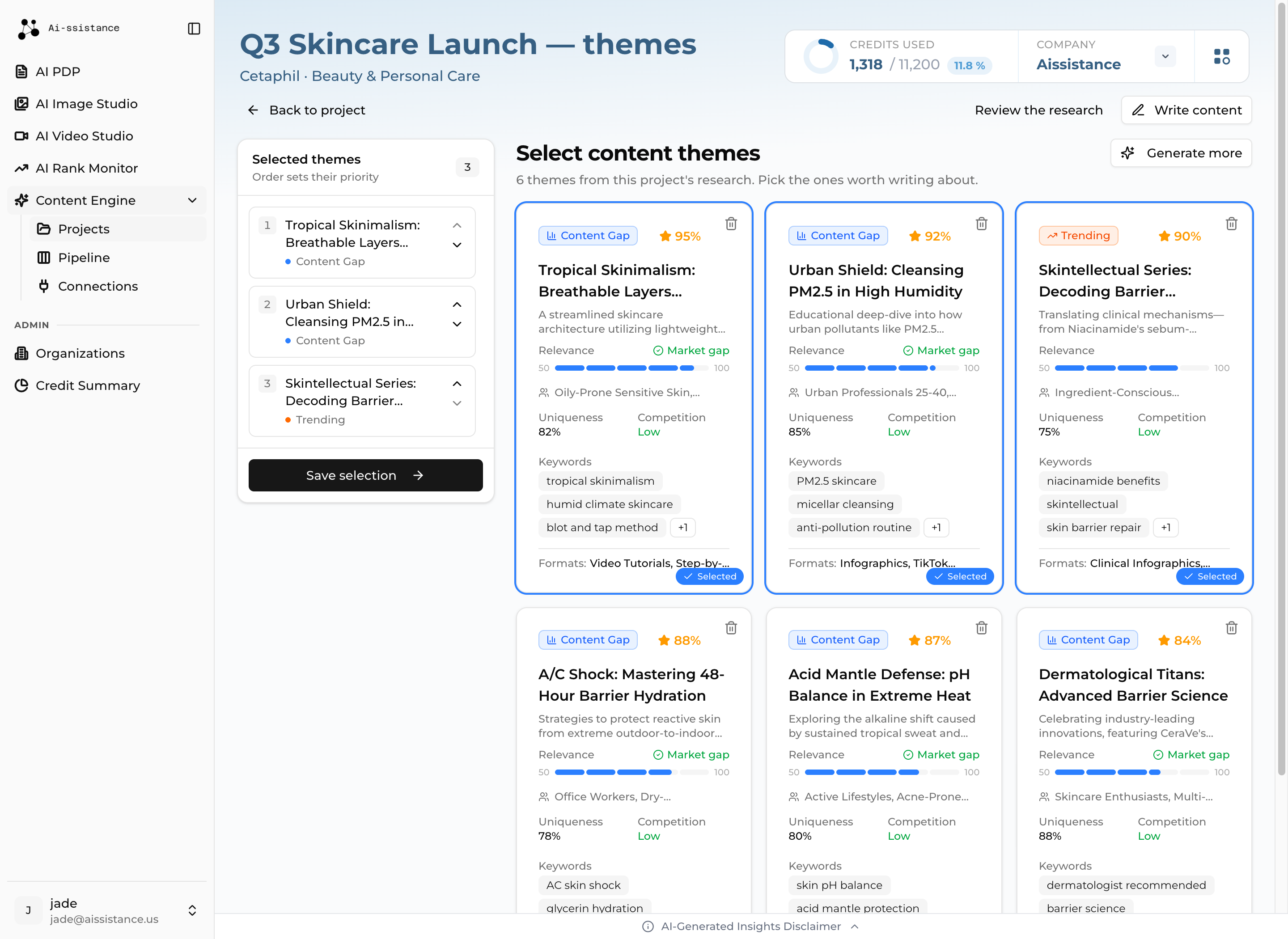
Selected themes rail listing chosen themes in priority order with the Save selection button
Step 14

Confirm Selected Themes

  • Your picks appear in the Selected themes rail. Their order sets their priority
  • Move a theme up or down, or remove it, from its row in the rail
  • Click Save selection — the selection stays on the project until you change it here
  • Then click Write content. Have a theme of your own? I already have a theme lets you write one by hand, for free
Ai-ssistance EcommerceIQ — Market Insights
08

Generate Content

Research the theme first — it is free, and it is what the citations come from

Ai-ssistance EcommerceIQ — Market Insights
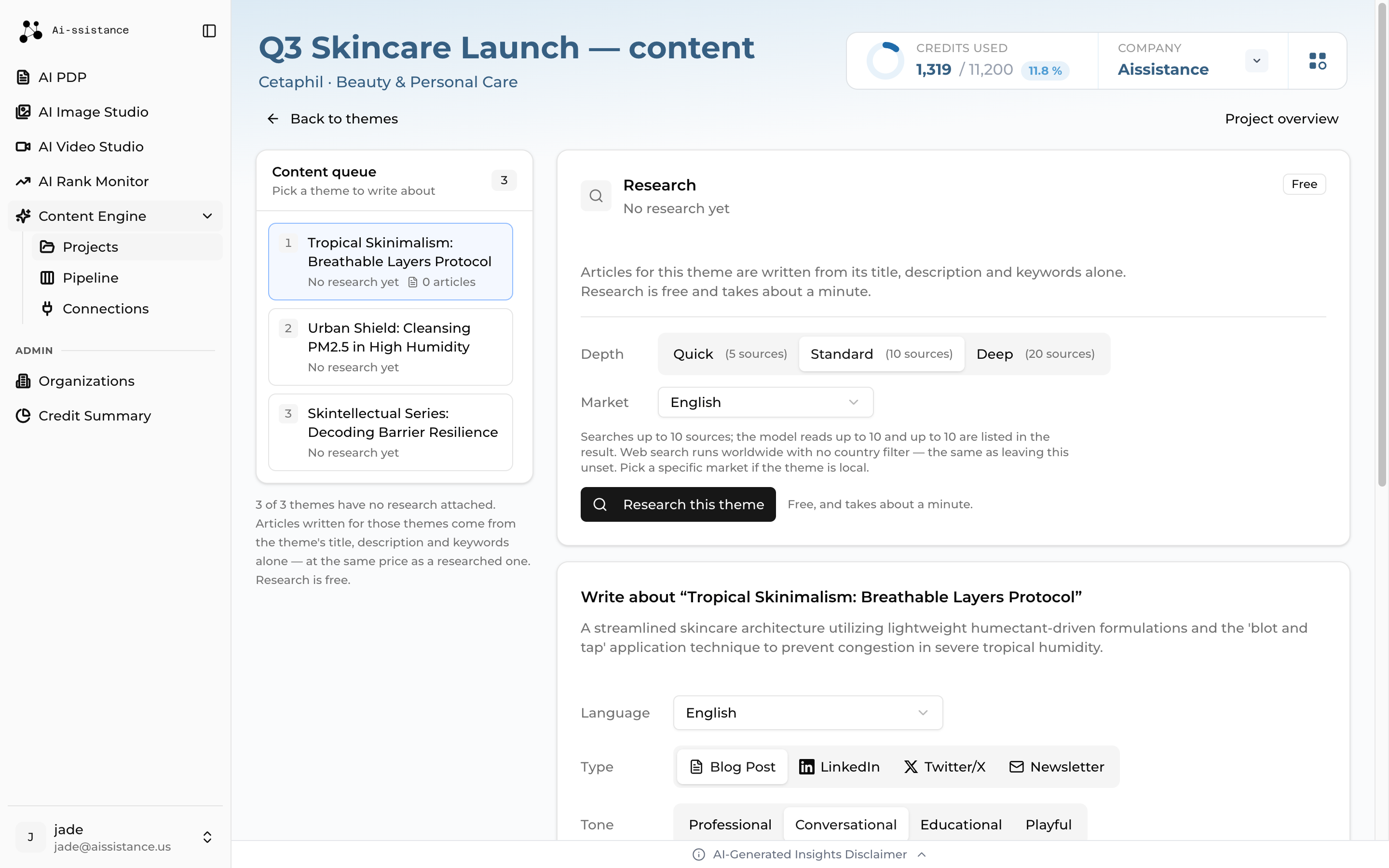
Research panel with the Free badge, the depth toggle, the market select and the Research this theme button
Step 15

Research the Theme

  • Pick a theme from the Content queue, then set a Depth: Quick (5 sources), Standard (10) or Deep (20)
  • Set the Market — it starts from the project’s language, and you can override it per theme
  • Click Research this theme. It takes about a minute, and the sources it finds are the only ones the article may cite
  • A re-run replaces the research above rather than adding to it
Free, at every depth. An unresearched theme cannot be written at all — there would be nothing behind the article’s claims.
Ai-ssistance EcommerceIQ — Market Insights
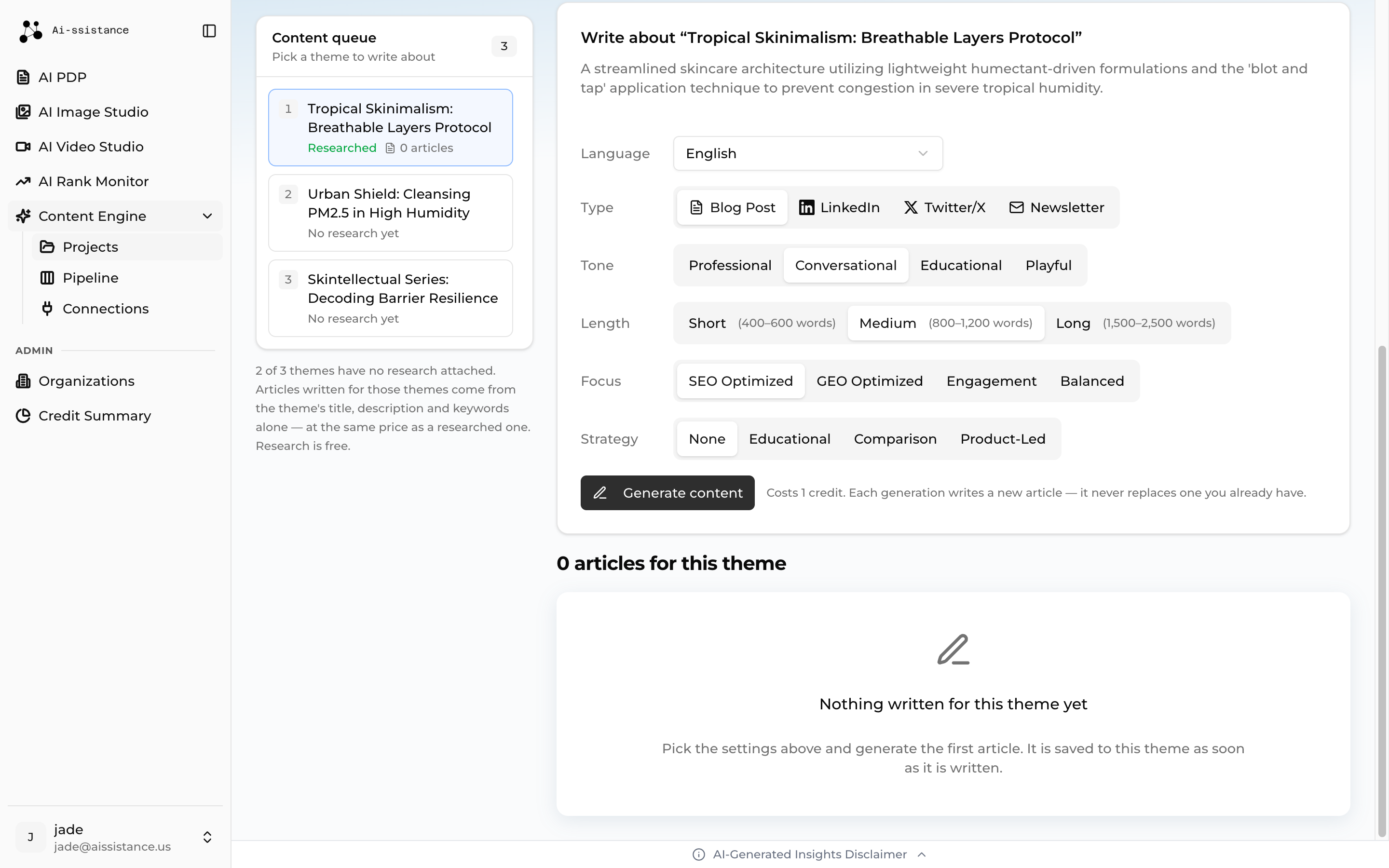
Article configuration rows for language, type, tone, length, focus and strategy with the Generate content button
Step 16

Configure and Generate

  • Read the findings first — Summary, Key insights, Key statistics and Content angles
  • Set Language, Type, Tone, Length, Focus and Strategy. Length options change with the type
  • Click Generate content and confirm. Text streams in as it is written
  • Each generation writes a new article — it never replaces one you already have
1 credit, charged when the article is saved — including if you close the tab mid-generation. The article will be waiting for you in the list.
Ai-ssistance EcommerceIQ — Market Insights
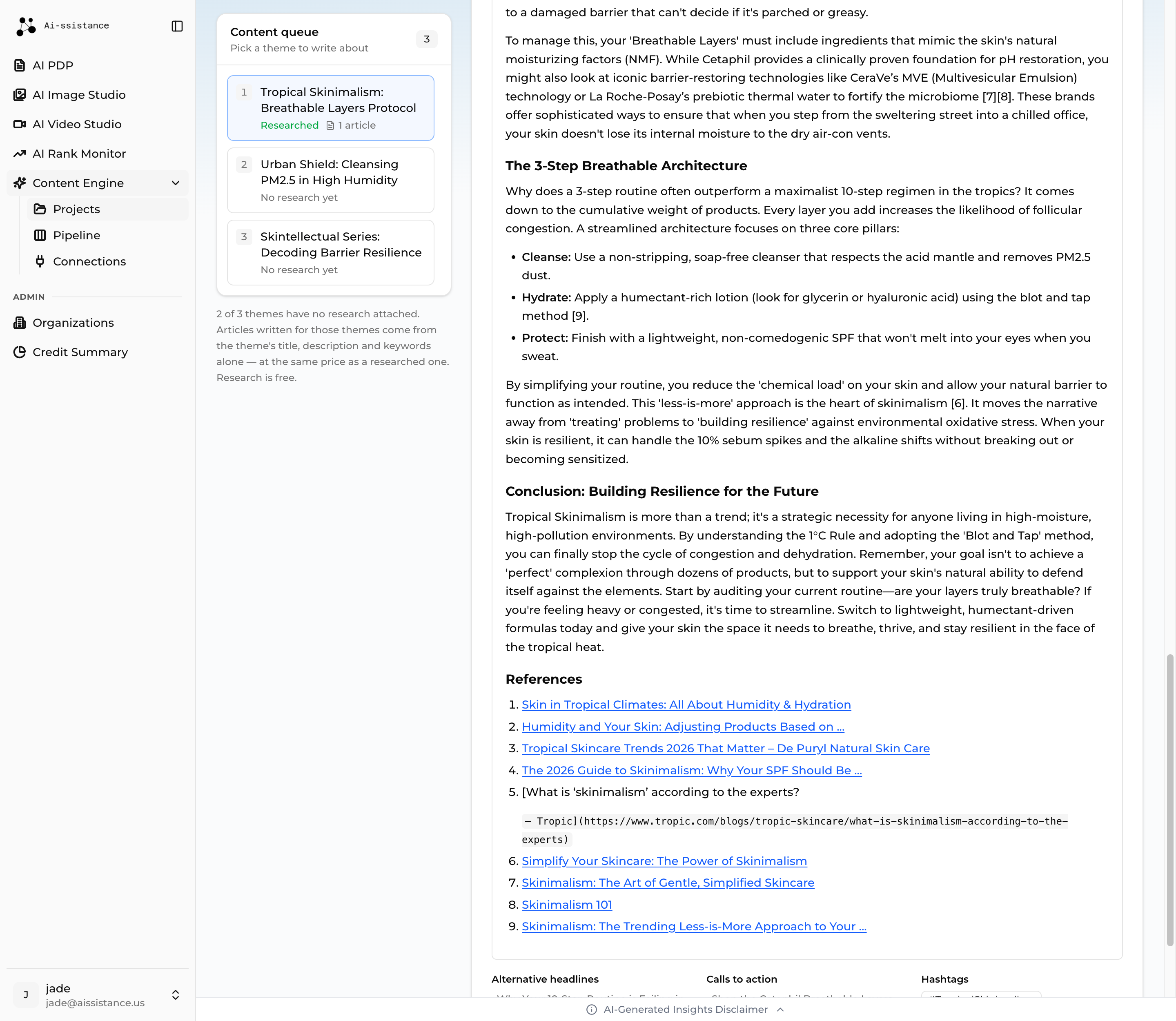
Generated article card with the rendered body, its references section and the alternative headlines and hashtags
Step 17

Review the Article

  • The card shows the article with its word count, read time, and the settings it was written with
  • Inline [n] markers sit at the claims they support, with a References list closing the article
  • Scroll past the body for Alternative headlines, Calls to action and Hashtags
  • Use these settings reuses this configuration for the next article. Open in editor takes it into the pipeline
Ai-ssistance EcommerceIQ — Market Insights
Citations

Every claim points at a source

Articles carry inline citations, and the references travel with the article wherever it goes — into the editor, into the PDF and Word downloads, and into the published WordPress post as real links.

Inline, not bolted on A [n] marker sits at the sentence it supports rather than being grouped at the end, so a reviewer can check one claim without reading the whole piece. The References list closes the article.
A citation cannot be invented The writer only ever emits a number. Titles and links are filled in afterwards from the theme’s own researched sources, and a marker pointing at a source that does not exist is removed. There is no way for a fabricated link to appear.
In your language The References heading is written in the project’s language. A theme with no research cannot be generated for at all, so you never get an empty references heading.
Ai-ssistance EcommerceIQ — Market Insights
09

Content Pipeline

Every article your projects produced, on one board

Ai-ssistance EcommerceIQ — Market Insights
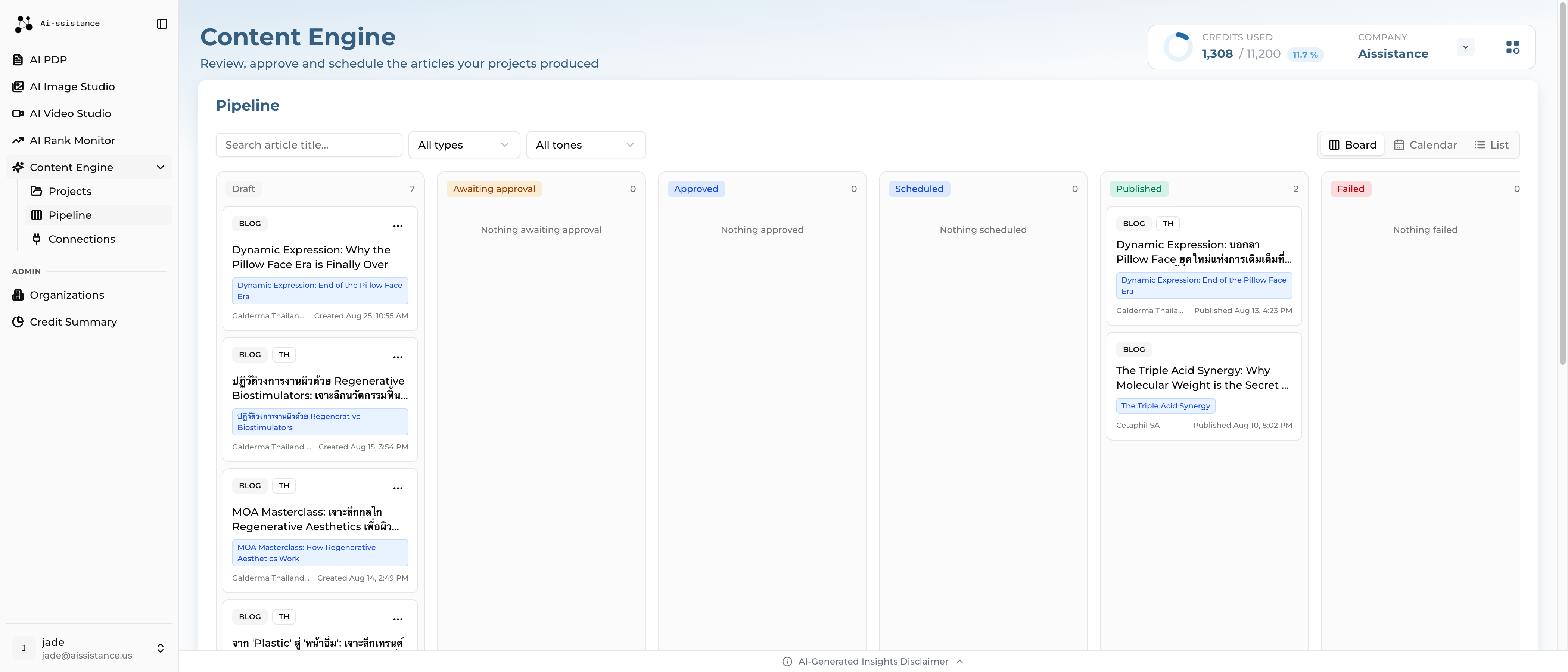
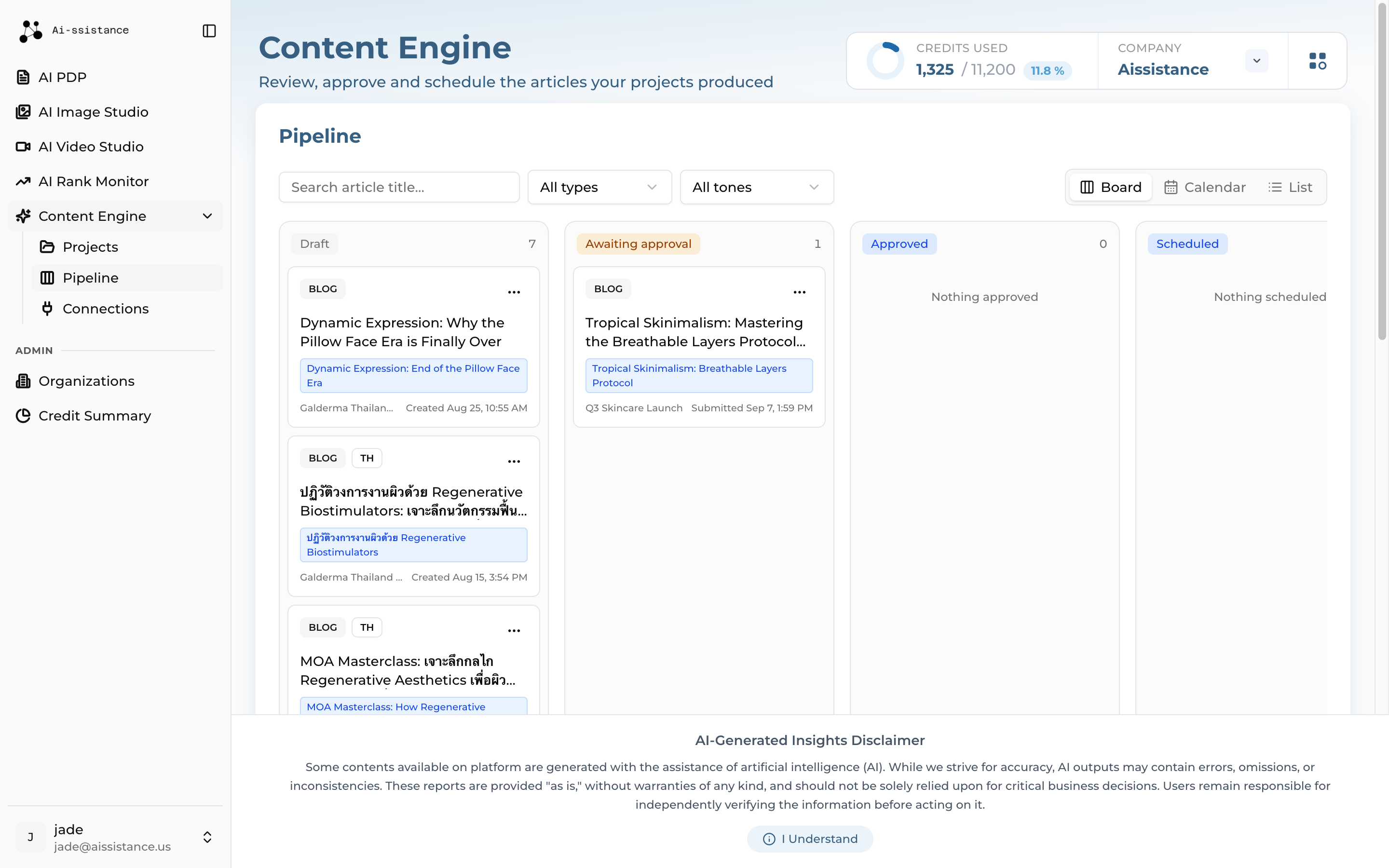
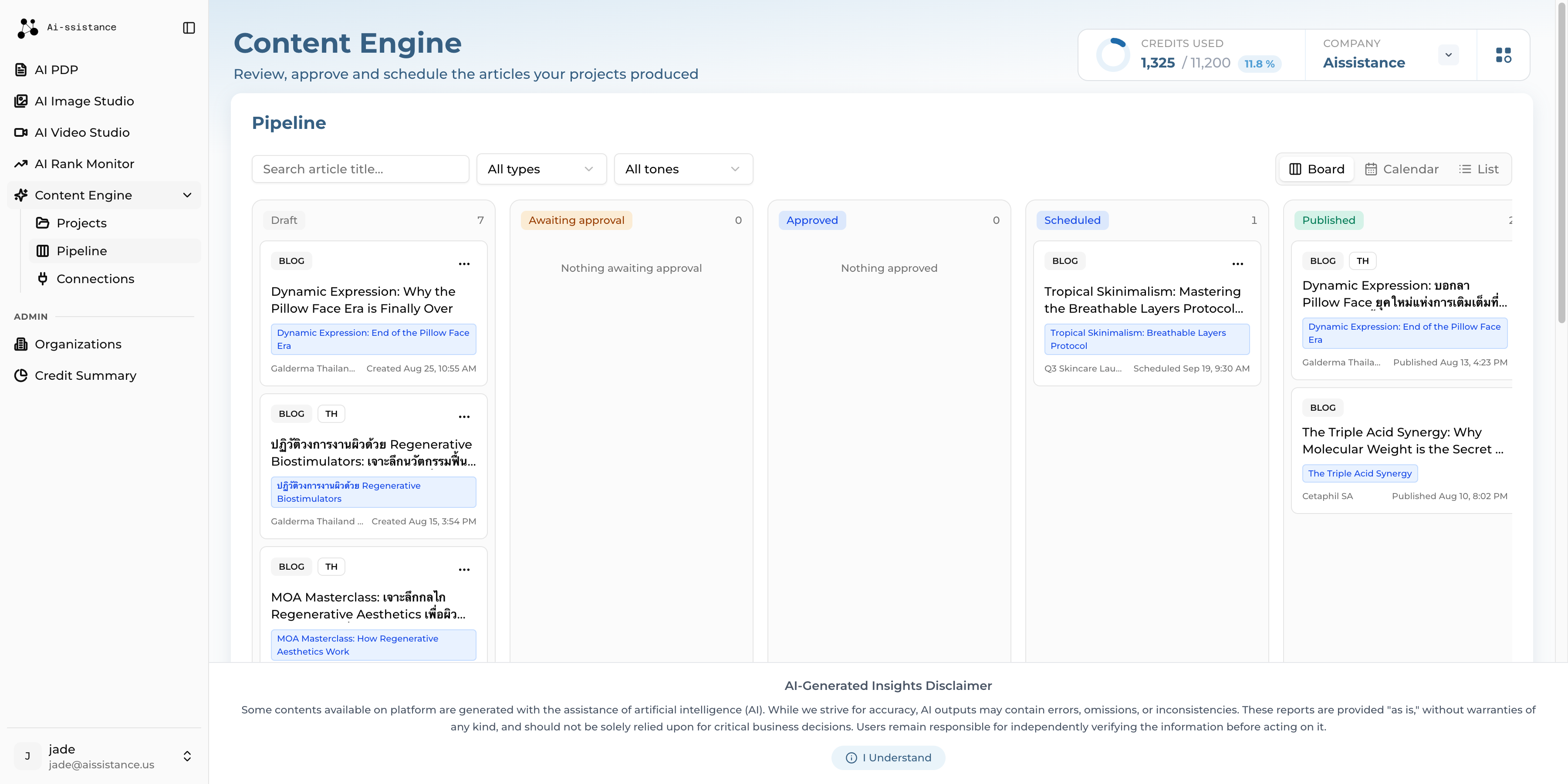
Content pipeline board with the six status columns and article cards
Step 18

View the Pipeline

  • Open Content Engine → Pipeline. The board has six columns: Draft → Awaiting approval → Approved → Scheduled → Published, plus Failed for anything WordPress rejected
  • The pipeline spans every project, so this is where the day’s review work lives
  • Filter by Type, Tone or title, and switch between Board, Calendar and List
  • Published is final. A published article cannot be edited or moved back here — edit it on WordPress instead
Ai-ssistance EcommerceIQ — Market Insights
10

Edit & Review

Read it, fix it, and hand it to whoever signs it off

Ai-ssistance EcommerceIQ — Market Insights
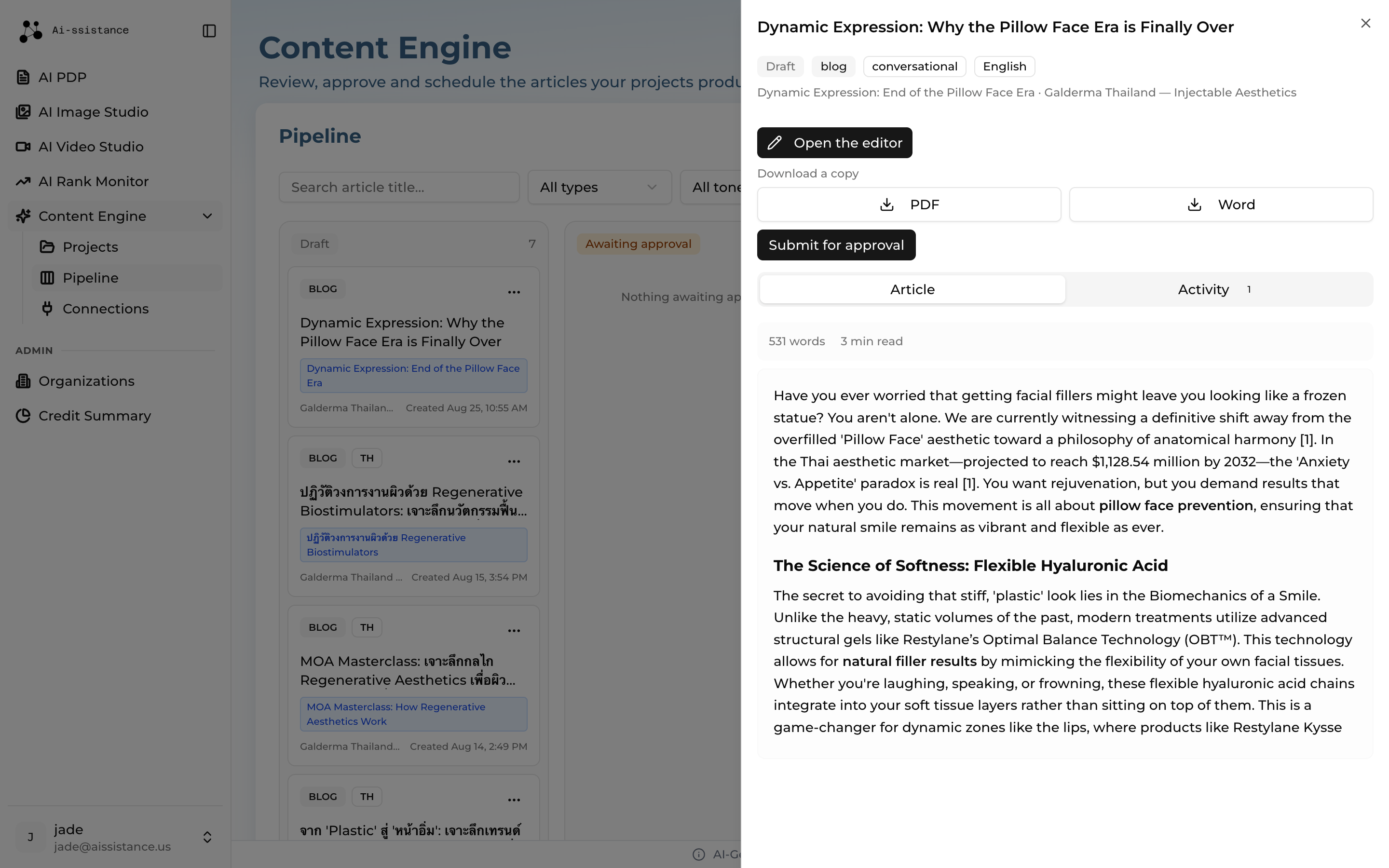
Article detail sheet open from the board, showing the Article and Activity tabs
Step 19

Preview from the Board

  • Click any card to open the detail sheet, with an Article tab and an Activity tab
  • Use it for a quick read and a quick decision — the move buttons are right there
  • Download a copy gives you a PDF or Word file to send to a reviewer outside the tool
  • Open the editor when the article needs actual changes
Ai-ssistance EcommerceIQ — Market Insights
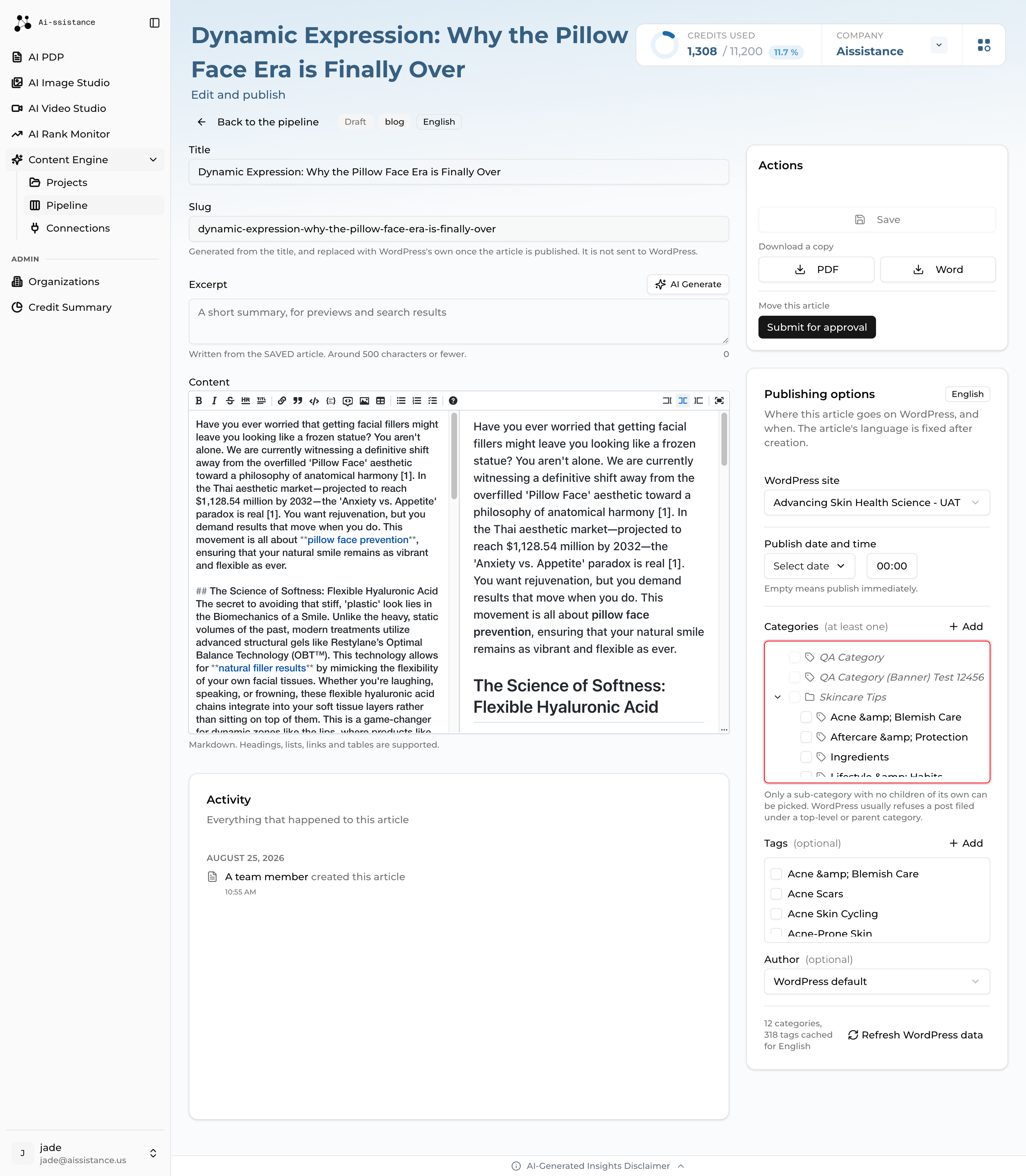
Article editor with the title, slug, excerpt and Markdown content fields alongside the Actions card
Step 20

Edit and Submit for Approval

  • Edit the Title, the Excerpt, and the body in the Markdown editor with live preview
  • AI Generate writes the excerpt from the saved article, so save your edits first
  • The Slug is read-only — WordPress assigns its own when the article is published
  • Save, then Submit for approval from the Actions card. A move does not save what is on screen
Ai-ssistance EcommerceIQ — Market Insights
Download a copy control in the editor Actions card with the PDF and Word buttons
Step 21

Download as PDF or Word

  • Download a copy appears in the editor, in the board’s detail sheet, and beside each freshly written article
  • PDF for a reviewer who only needs to read it; Word for one who needs to mark it up
  • The References section comes with it, so the citations survive the handover
  • Save first — the download is made from what is stored, not what is on screen
Free. If a PDF cannot render your language’s script, the engine says so and points you at Word, which always works.
Ai-ssistance EcommerceIQ — Market Insights
11

Approve & Publish

Sign it off, then send it to WordPress now or on a date

Ai-ssistance EcommerceIQ — Market Insights
Pipeline board with an article sitting in the Awaiting approval column
Step 22

Awaiting Approval

  • Submitting moves the article into Awaiting approval, where a reviewer picks it up
  • The reviewer can Approve it, or Request changes to send it back to Draft
  • Request changes requires a comment — the writer is told what to fix, and it is recorded on the article
  • Every move is written to the Activity tab with who did it and when
Ai-ssistance EcommerceIQ — Market Insights
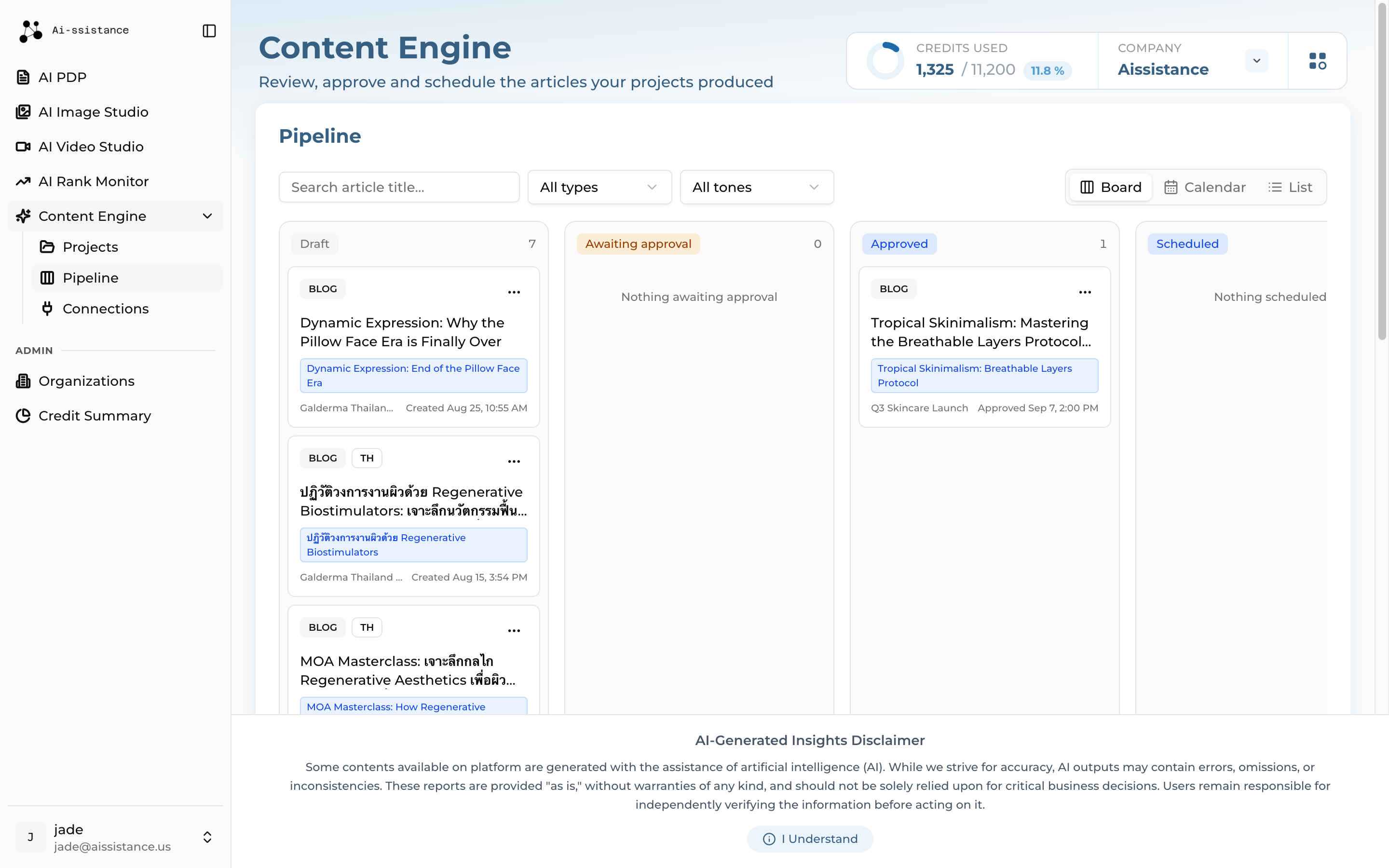
Pipeline board with the article moved into the Approved column
Step 23

Content Approved

  • Approve moves the article to Approved. Only approved articles can be published
  • From here you can publish, schedule, or send it back for re-review if something was missed
  • Approval is free, as is everything to do with publishing
  • Open the article to set up where and when it goes live
Ai-ssistance EcommerceIQ — Market Insights
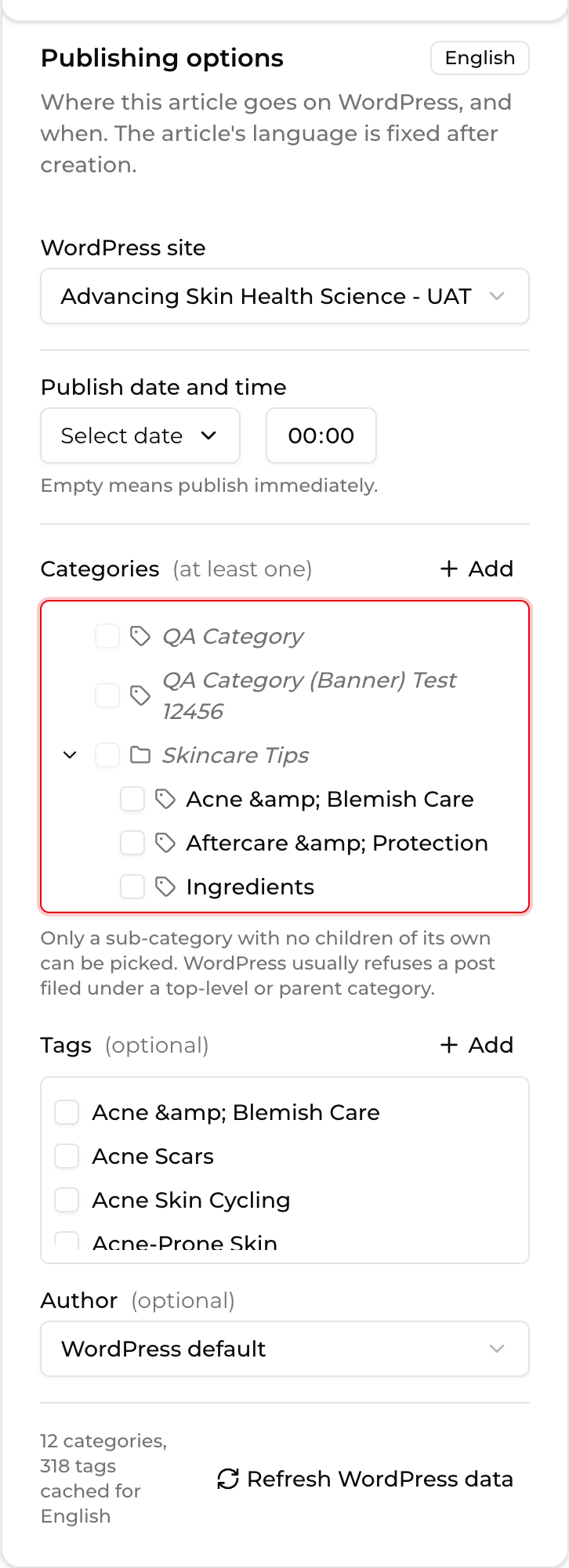
Publishing options panel with the WordPress site select, the category tree, tags and the publish date field
Step 24

Set the Publishing Options

  • Pick the WordPress site, then at least one Category — publishing is refused without one
  • Only a leaf sub-category can be chosen: one nested under a parent, with no children of its own
  • Add Tags and an Author if you want; both are optional
  • Leave Publish date and time empty to go live immediately, or set one to schedule
Ai-ssistance EcommerceIQ — Market Insights
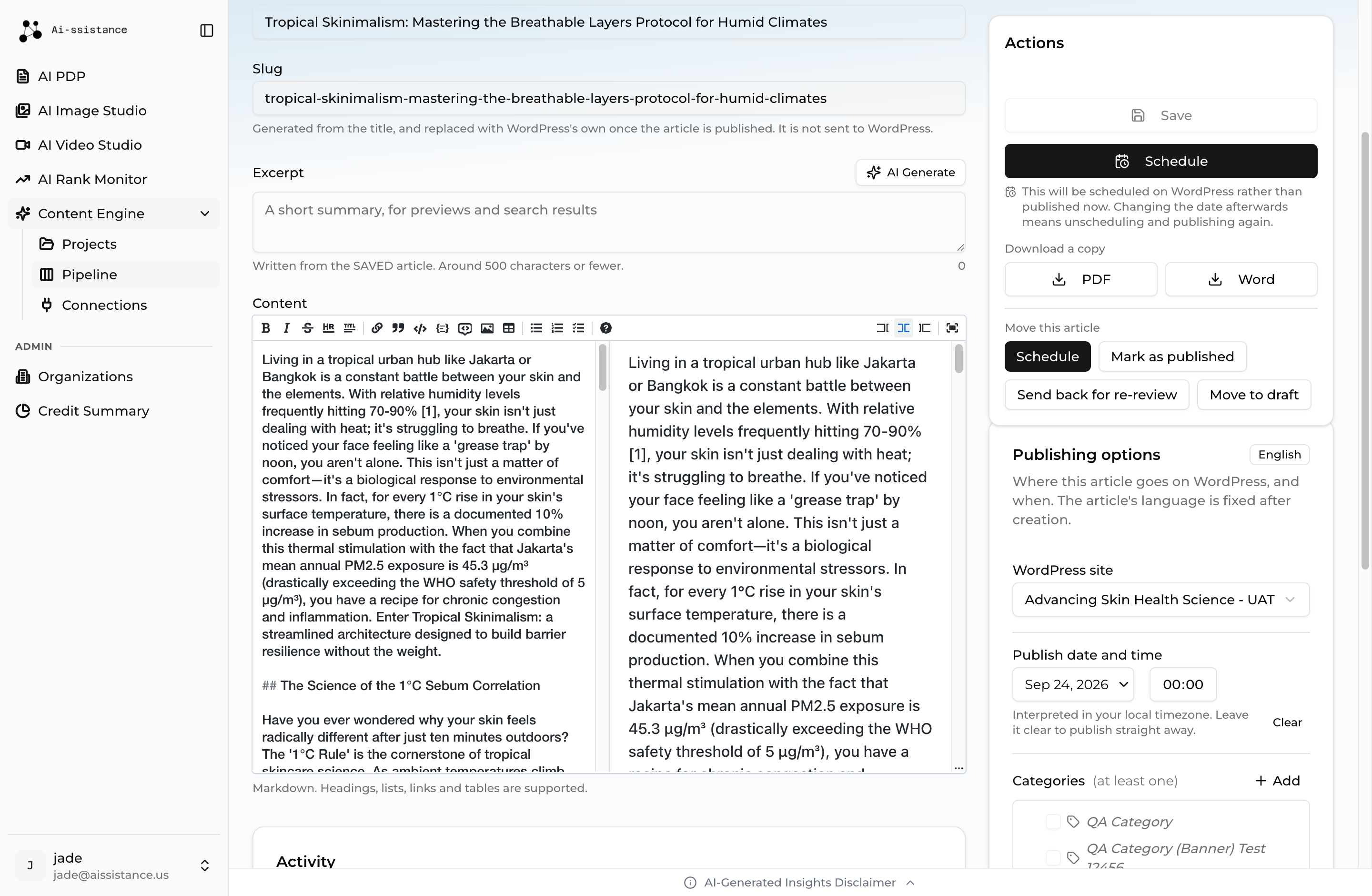
The editor with a saved publish date, where the action button now reads Schedule instead of Publish
Step 25

Publish or Schedule

  • The action button reads Publish when no date is saved, and Schedule when one is
  • Save first. While anything is unsaved every publish action is greyed out — what goes to WordPress is what is stored on the server, not what is on your screen
  • The date and time live in the panel above. Times are read in your local timezone, and a scheduled date must be in the future
  • There is no second confirmation — clicking sends the article straight to WordPress
Ai-ssistance EcommerceIQ — Market Insights
Pipeline board with the article in the Scheduled column showing its publish date
Step 26

Content Scheduled

  • The article moves to Scheduled and the card shows when it goes live
  • The post already exists on WordPress in a scheduled state — it will publish itself at that time
  • Anything WordPress rejects lands in Failed, from where you can retry it or move it back to Draft
  • Click the card to change the date, re-push edits, or take it off the schedule
Ai-ssistance EcommerceIQ — Market Insights
12

Monitor & Track

What is queued, what happened to it, and what is already live

Ai-ssistance EcommerceIQ — Market Insights
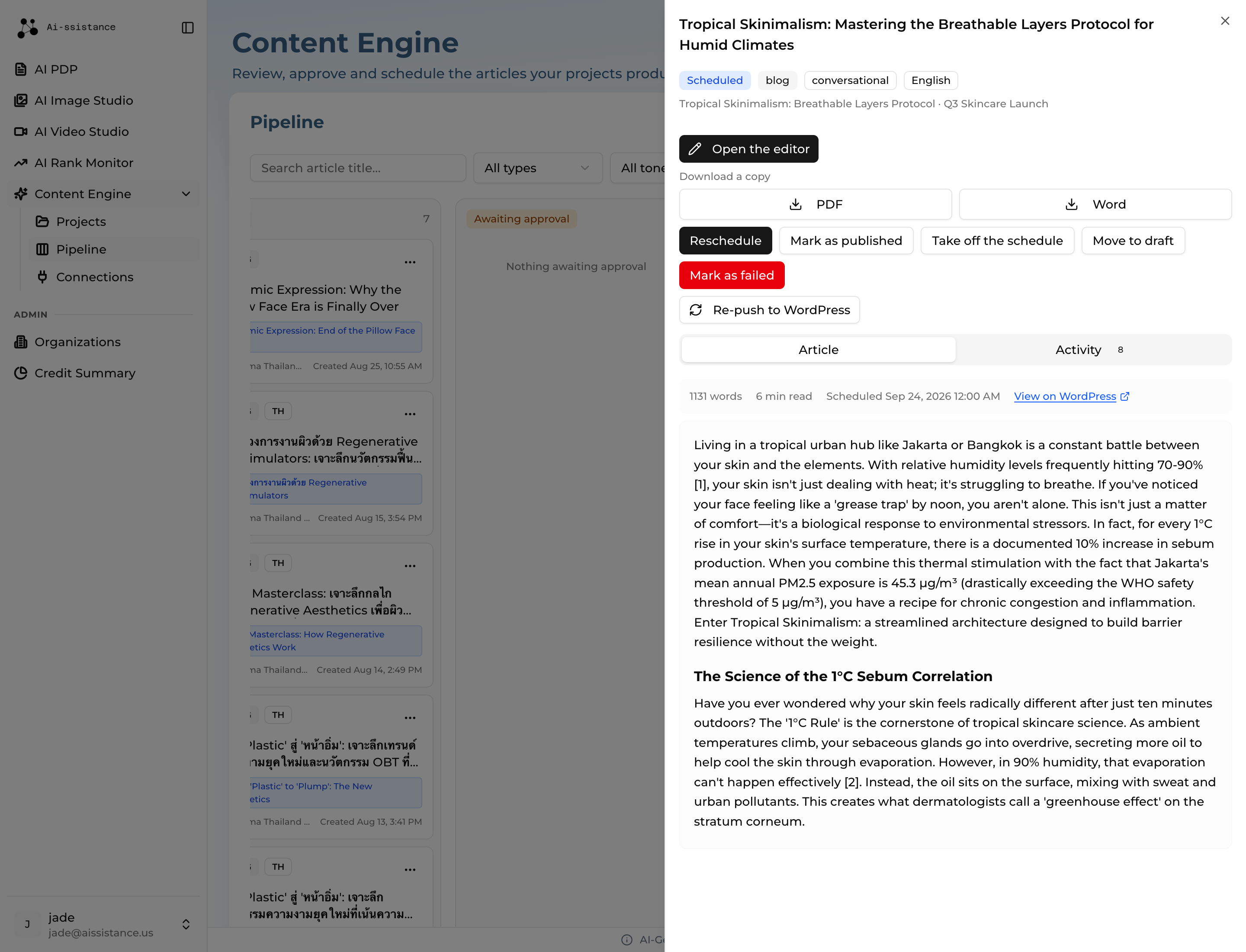
Scheduled article detail sheet with the Reschedule, Take off the schedule and Re-push to WordPress controls
Step 27

Manage a Scheduled Post

  • Open a scheduled article to see its publish date and time, and a View on WordPress link once the post exists there
  • Reschedule moves it to a different date
  • Re-push to WordPress sends your latest saved edits to the same post — it never creates a duplicate
  • Two ways off the schedule, and they are not the same. Unschedule in the editor moves the WordPress post to the trash and returns the article to Approved — publishing again creates a new post, not the old one. Take off the schedule on the detail sheet only changes the status here: the WordPress post stays, and may still publish itself
  • Mark as published and Mark as failed record the outcome by hand, for when publishing happened outside the app
Ai-ssistance EcommerceIQ — Market Insights
Activity tab listing the article's history with who acted and when
Step 28

Track Activity History

  • The Activity tab is the article’s audit trail, on the detail sheet and in the editor
  • Creation, edits, approvals, requested changes, scheduling and publishing are all recorded
  • Each entry names who acted and when, and shows the move as from → to
  • Notes left on a move are kept here, so a rejection reason is never lost
Ai-ssistance EcommerceIQ — Market Insights
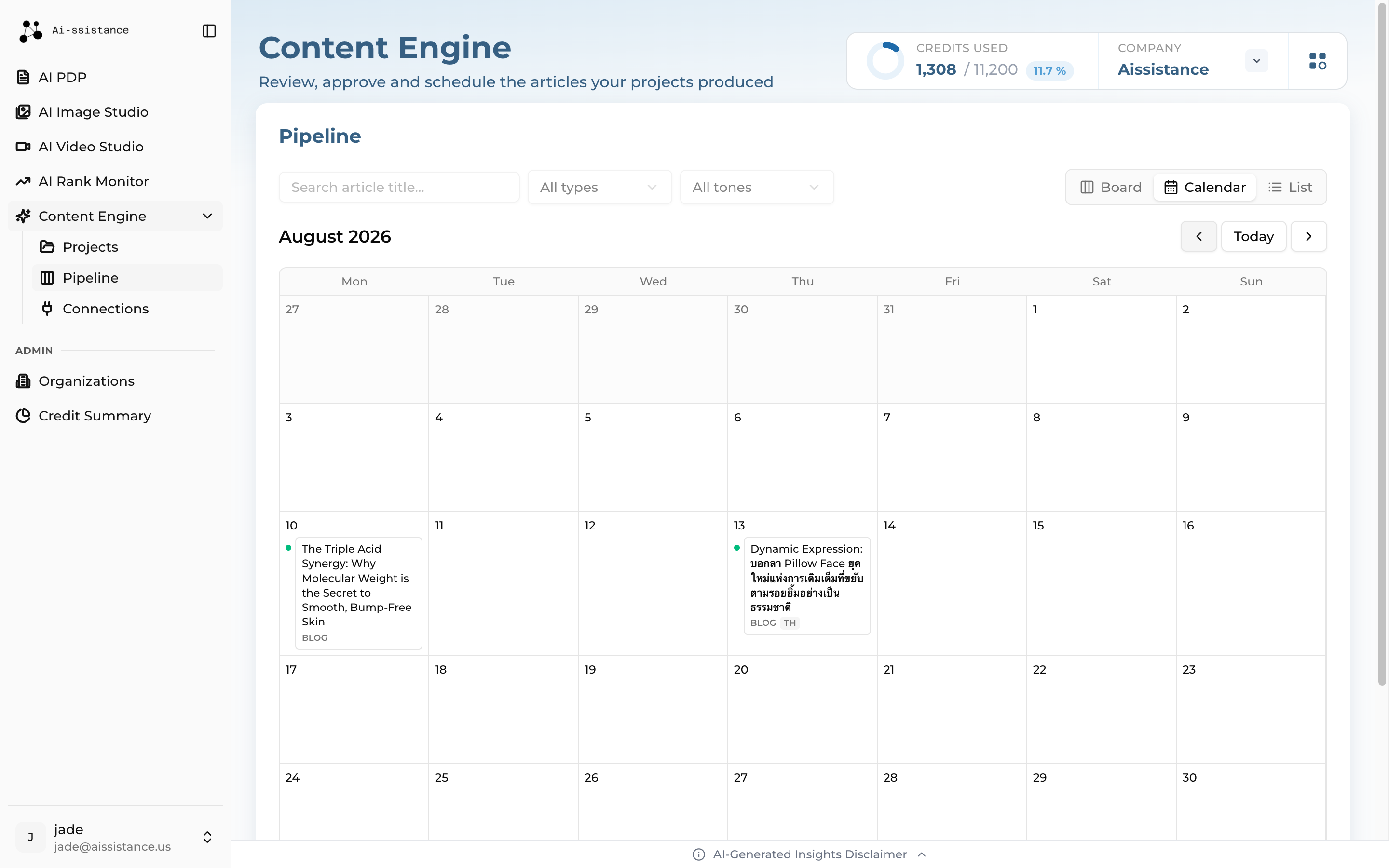
Pipeline calendar view for August 2026 with published articles on their dates and the Today control
Step 29

Calendar View

  • Switch the pipeline to Calendar to see the month laid out
  • Scheduled and published articles sit on their dates, colour-coded by status
  • Use Today and the arrows to move between months; a busy day collapses to +N more
  • Click an entry to open the same detail sheet as the board
Ai-ssistance EcommerceIQ — Market Insights
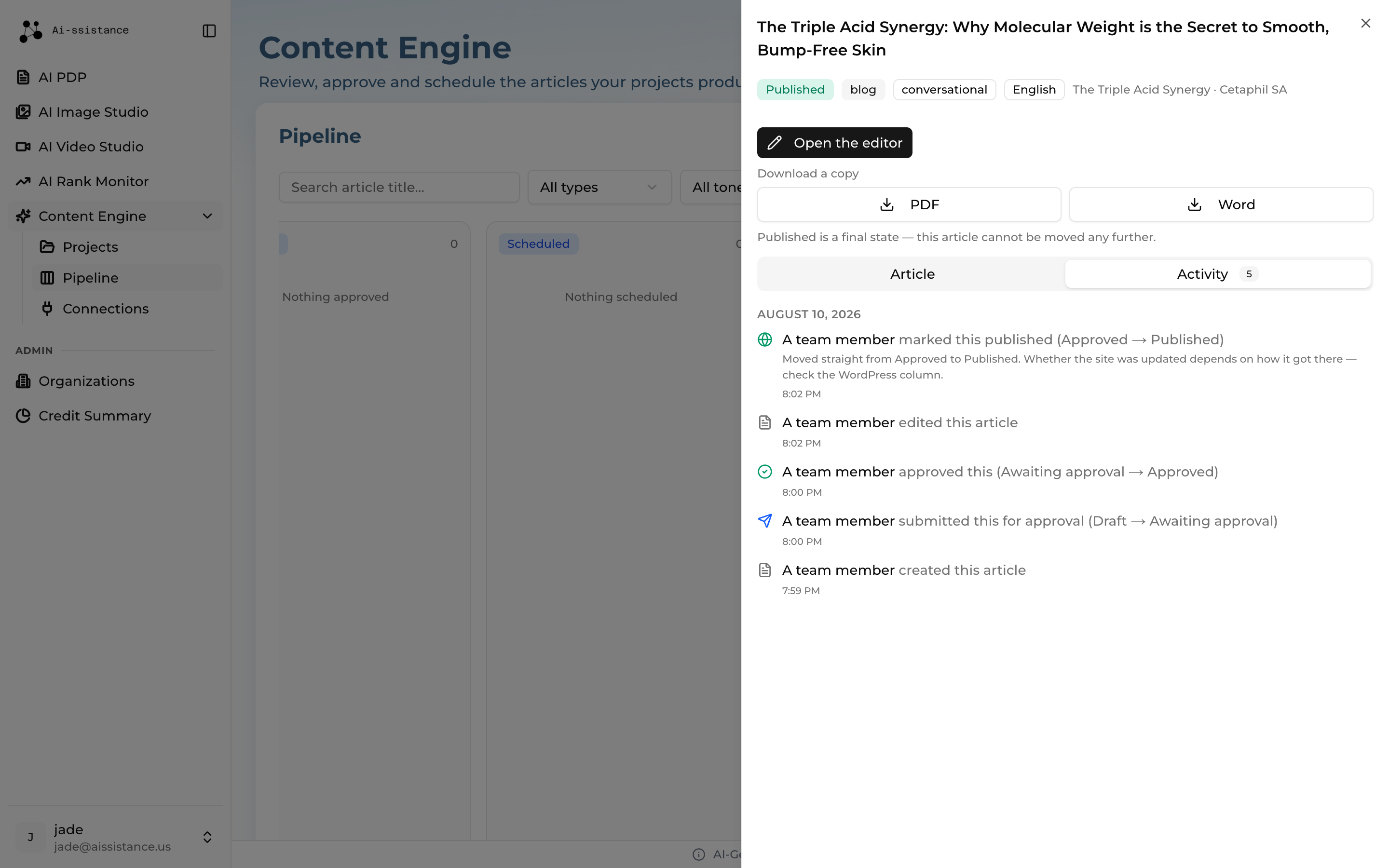
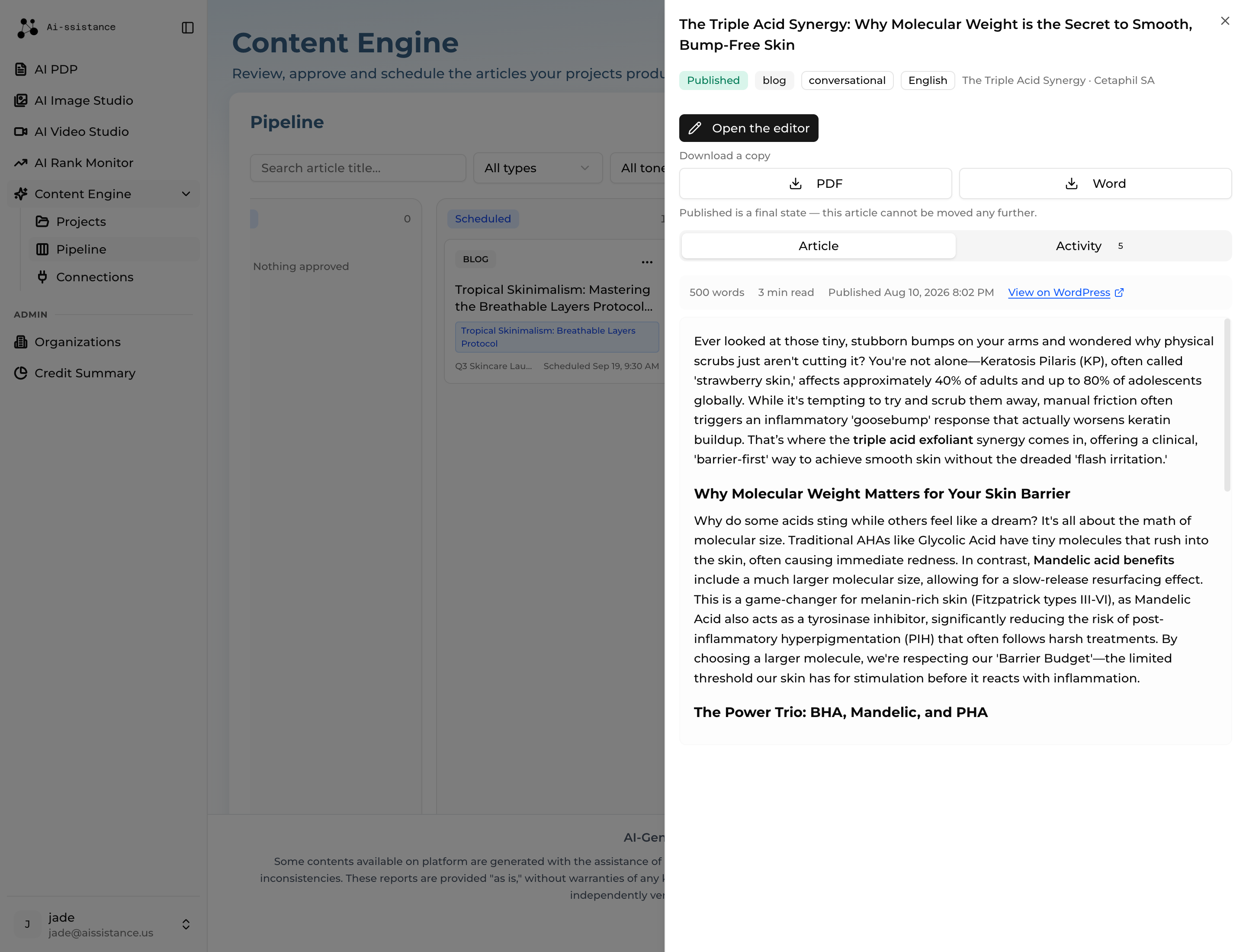
A published article in the pipeline, showing the Published state, the final-state notice and the View on WordPress link
Step 30

Content Published

  • Publishing sends the article to WordPress with its headings, links and References list intact — View on WordPress opens it live on your site
  • The pipeline card moves to Published, which is a final state here — further edits happen in WordPress
  • Your project rests at Content Ready; the remaining stages are reserved for future automation
  • Head back to the pipeline and start the next piece — the research is already paid for
Ai-ssistance EcommerceIQ — Market Insights
EcommerceIQ — Market Insights Ai-ssistance

Start Creating

Research you can check, in the language your market reads.

aissistance.us